This feature can be activated among the components and allows customers to request a quotation for selected products instead of placing a direct order through the cart.
Requesting a Quotation
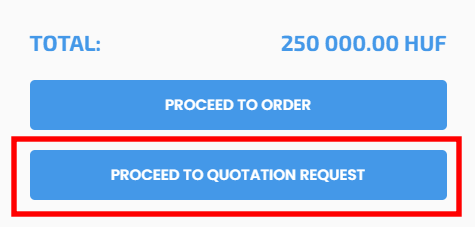
A quotation can be requested on the Cart page after selecting the products intended for order.
The quotation request process is similar to placing an order. By clicking the "Proceed to Request Quotation" button, the system redirects the user to the Quotation page. Here, the necessary information must be filled out, and the Comments field can be used to specify the details of the quotation request. After completing the form, the request can be submitted.
The submitted quotation will appear under the Webshop -> Quotation tab.
Quotations list
- Name – The name of the customer requesting the quotation.
- Wholesale – Indicates whether the customer is purchasing at wholesale prices.
- Time – The exact date and time the quotation was submitted.

- Total – The total amount the customer would need to pay for the selected products.
- Send quotation – After setting the appropriate price, the offer can be sent to the customer via email using this button.
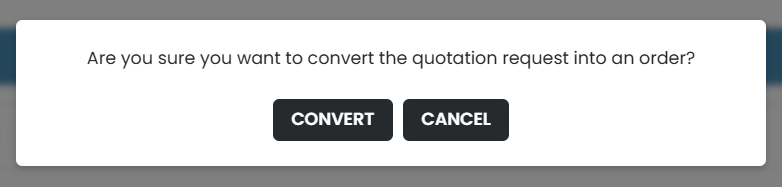
- Convert to order – The quotation can be converted into an order and will automatically appear under Webshop → Orders.
- Print – The quotation can be downloaded in PDF format, suitable for printing or emailing.
- Edit – Allows store owners to modify the quotation – the requested details can be viewed in the Comments section.
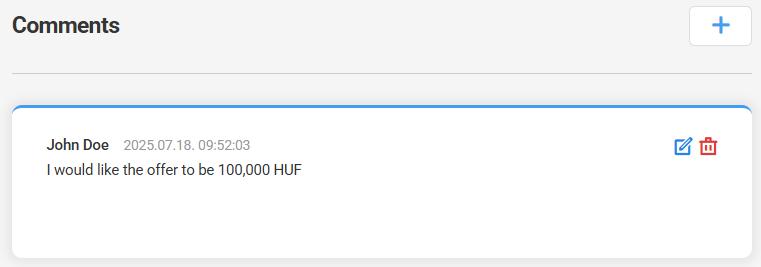
IMPORTANT: If the customer specified a particular price in the comments field, it can be reviewed on the Edit page. If approved by the administrator, the current product price can be modified accordingly. The updated quotation can be sent after saving the changes.
Editing a quotation
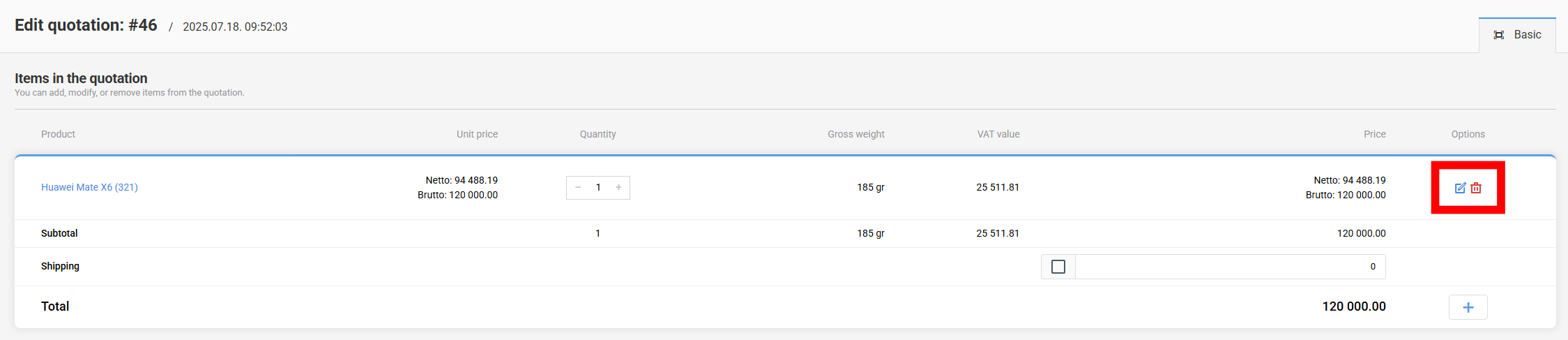
Editing a quotation is similar to editing an order. Administrators can modify the items included in the quotation within the Edit Quotation section.
Items in the quotation
When requesting a quotation, editing and deleting products is a key part of the process, as the current product prices may need to be adjusted to send an appropriate offer.
- Product – Clicking on the product name navigates directly to the product's editing page.
- Unit price – The net and gross price of a single unit of the product.

- Quantity – The quantity the customer has requested for the product.
- Gross weight – The total gross weight of the product (weight per unit × ordered quantity).
- VAT value – The amount of value-added tax applied to the product’s price.
- Price – The total net and gross price of the product (unit price × quantity).
- Shipping – Automatically calculates the shipping fee based on the order contents and the selected shipping method. However, webshop owners can easily override this amount by ticking the checkbox next to the calculated shipping cost and entering a custom amount.
- By clicking the "Edit" button, store owners can modify a product already included in the order.
- Products can be removed from the order by clicking the red "trash can" icon at the end of the product entry.
- Additional product items can be added to the order at any time by clicking the "plus" button at the bottom of the Order Items section.
- Editing an Existing Product
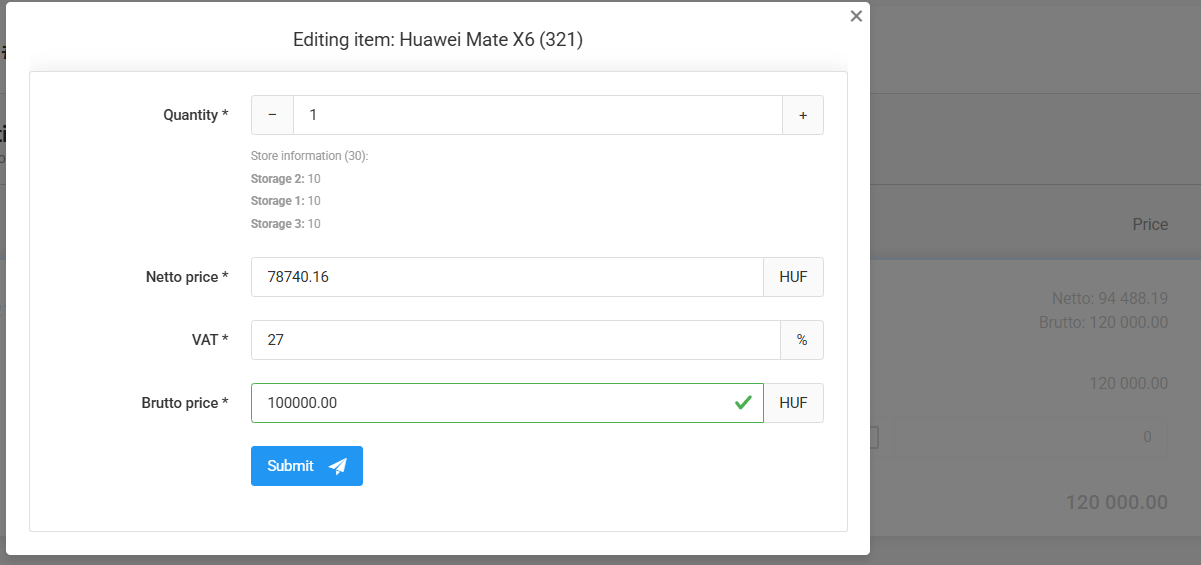
When clicking the "edit" icon at the end of an order item row, a modal window opens for editing the item. This allows the administrator to modify the quantity and price of the selected item.
In the case of a quotation, modifying the product price is especially important, as the offer must be sent to the customer with the finalized price.
- Quantity – The quantity of the product for the given order.
- Stock information – The available stock quantity of the product in the different warehouses used by the webshop.
- IMPORTANT: Only warehouses available for online sales are listed.

- Neto price – The net price of a product item.
- VAT – The amount of value-added tax (VAT) applied to the product’s price.
- Brutto price – The gross price of a product item (net price × VAT).

By clicking the "Save" button, any changes made will be saved (but only for the edited order).
By clicking the "X" button in the top right corner, the window will close without saving the changes made to the product item.
Customer details
- Email – The email address of the customer who placed the order.
- Delivery type – The type of shipping selected by the customer at checkout. This option can only be modified if no shipping request has yet been sent to the external shipping provider.
- Payment type – The payment method selected by the customer at checkout.
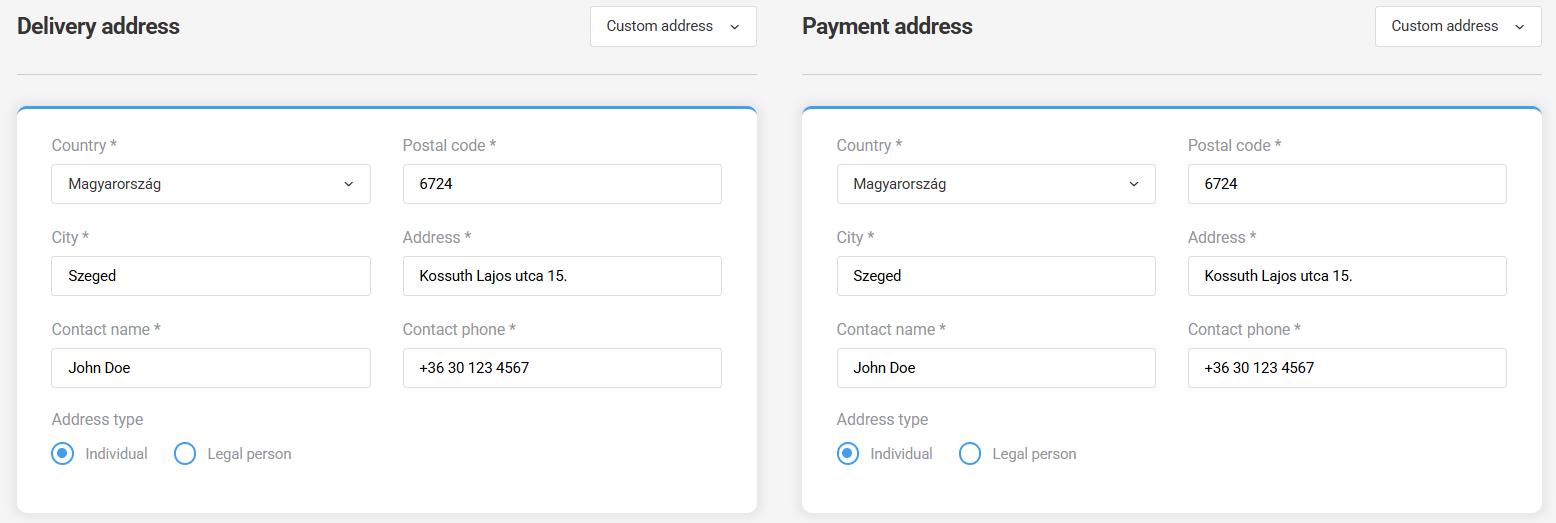
- Delivery and payment address
Country, postal code, city, address – the exact details of the customer's residence or delivery address, used for package delivery and invoicing.
Contact person's name – The person who handles the order and who can be contacted if needed.
Contact phone – The phone contact of the contact person.
Address type - Whether the customer is a private individual or a legal entity.
Comments
In the case of a quotation, the comments field is important, as this is where the customer can specify what they would like to receive a quotation for.
The comment field is reserved exclusively for administrators to leave notes, reminders, or for internal communication between administrators. Comments created under the order are not sent to customers.
Files
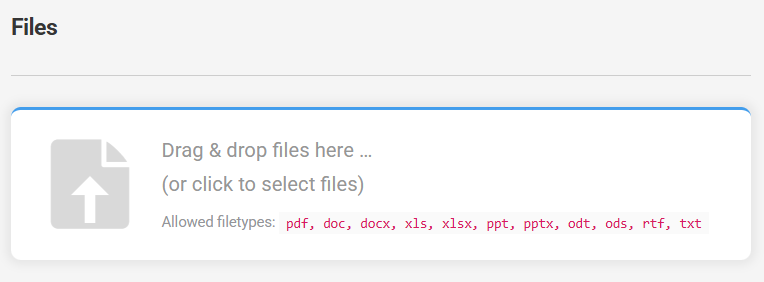
The Files section is also for internal use only. It allows administrators to attach various types of documents to a specific order.
Custom parameters
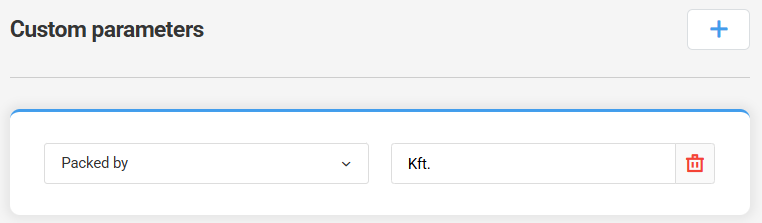
The feature allows administrators to add custom data to orders, enabling webshop owners to customize and extend order information according to the specific needs of their business.
Sending the Quotation
After the customer submits the quotation request, it will appear on the My Orders page in the webshop.
The administrator receives a notification about the quotation request. If the administrator considers the offer appropriate and all details are correctly filled in on the admin interface, the quotation can be sent to the customer using the Send Quotation button.
After this, the customer will receive an email notification about the updated offer, and the product price(s) will also be updated on the My Orders page.
Finally, if the customer is satisfied with the offer, they can convert it into an order by clicking the Cart button.