To ensure that Sellvio complies with the latest GDPR regulations, the administrative section provides a dedicated interface within the system for reviewing the data stored about individual users. Additionally, it facilitates the anonymization of such data.
This administrative screen can be accessed from the administrative dashboard under User Management → GDPR Data Review.
In Sellvio, users are primarily tracked and identified by their email addresses.
To search the database and display all recorded information about a specific user, simply enter the user's email address in the "Email" field and click the search button.
Once the search is complete, the system will display seven sections, each containing different types of user information:
User Information
The first section contains general user information, including the database ID, name, email address, phone number, and the IP address used during account registration and the last login.
Clicking the "Anonymize" button in the top right corner of this section will anonymize the user's data.
WARNING: Since the email address will also be anonymized, the user will no longer be able to log in!
Social Accounts
The Social Accounts section lists all social accounts the user has used to log into the Sellvio system.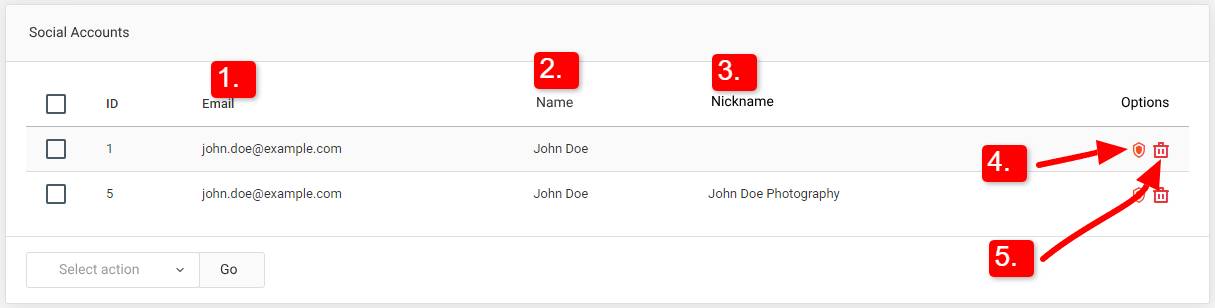
Email: The email address associated with the user's social account.
Name: The name displayed on the respective social media platform.
Nickname: Some social platforms, such as X (formerly Twitter), use nicknames. This column shows the user's nickname on the respective social platform.
Clicking the "Anonymize" button anonymizes all data in the respective row, retaining only the identifier number.
Individual rows can also be deleted using the trash can icon at the end of the row.
Addresses
The Addresses section lists all addresses associated with the user, regardless of whether they were added by the user on their profile page or by administrators through the admin interface.
We won’t go into detail about the contents of each column, as they are mostly self-explanatory.
Addresses can be anonymized or deleted using the buttons at the end of the table rows.
Orders
The Orders table displays all orders placed by the user. In accordance with legal regulations, orders can only be deleted or anonymized after 5 years. Until then, they can only be edited.
We won’t go into the details of what each column contains, as they are mostly self-explanatory.
Comments
The Comments table contains all comments left by the user on various posts, such as Articles, Galleries, and Events.
Email: The email address used by the user to leave the comment.
Name: The name under which the user left the comment.
Comment: The content of the comment.
Clicking the "Edit" button opens the comment's editing form in a new tab.
Clicking the "Anonymize" button anonymizes all data in the respective row, retaining only the identifier number.
An individual row can also be deleted using the trash can icon at the end of the row.
Subscriptions
The Subscriptions section displays all newsletter subscriptions associated with the user.
We won’t go into detail about the contents of each column, as they are mostly self-explanatory.
Password Resets
The Password Resets section catalogs all the user's past password reset requests.
We won’t go into detail about the contents of each column, as they are mostly self-explanatory.