Every Sellvio theme includes a unique slider section at the top of the homepage. The Sliders Administration page allows store owners to create and edit the sliders displayed on the homepage.
The sliders are categorized based on the languages available in the webshop.
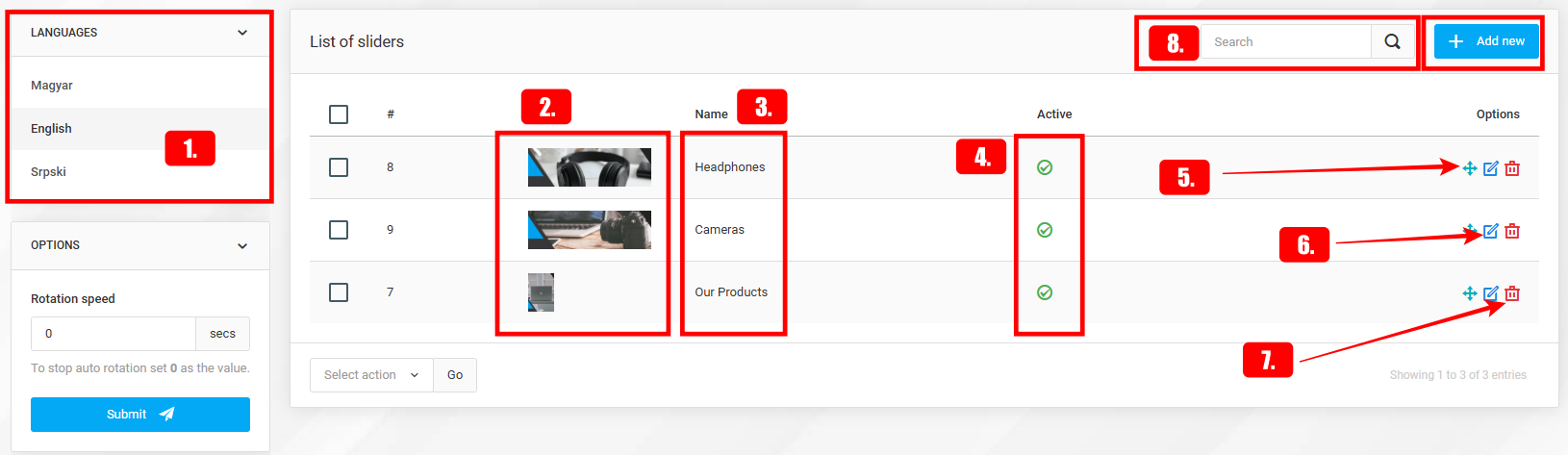
Language – To filter sliders by language, click on the desired language in the sidebar.
Slider Image – The first column displays a thumbnail of the slider image.
Name – The name of the slider. This also serves as the title that customers see on the homepage slider.
Active – Indicates whether the slider is enabled or disabled. Disabled items will not appear on the homepage.
Sliders can be manually reordered by clicking and dragging the "arrows" icon. The sliders will appear on the homepage slider in the order set by the administrator on the administration screen. Disabled items are naturally excluded.
By clicking the "edit" button, store owners can modify existing slider items.
If a slider is no longer needed, store owners can delete it by clicking the "trash" icon.
To search for a slider, simply enter its name in the search bar and click the "magnifying glass" icon.
New sliders can be created at any time by clicking the "Add new" button
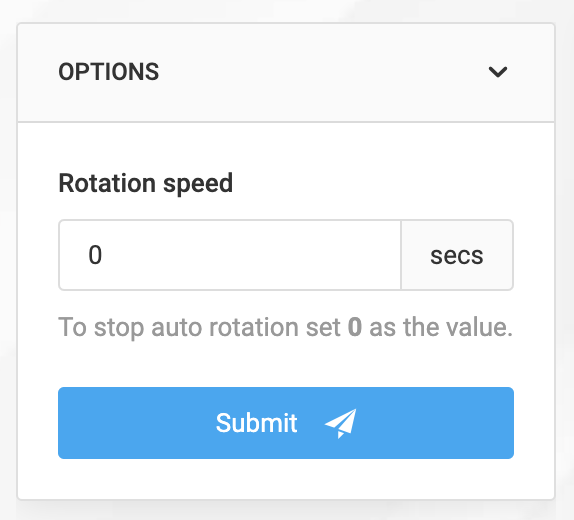
In addition, it is possible to configure the automatic rotation of the slider, which can be done in the Actions Sidebar. If "0" is entered in the field, automatic rotation is disabled. For other numerical values, automatic rotation is activated. For example, if "5" is entered in the field, the slider will rotate every 5 seconds.
Adding and Editing Sliders
- Name – The name of the slider. This name also serves as the title visible to customers on the slider on the homepage.
- Nyelv — sliders can be added for every active language
- If a language is selected from the list before clicking the "Add New" button, the selected language will be pre-selected in the dropdown menu.
- If no language is selected before clicking the "Add New" button, the dropdown menu will display "All", meaning the slider will be available in all languages.
- The dropdown value can be set to "All" at any time, making the slider available in all languages.
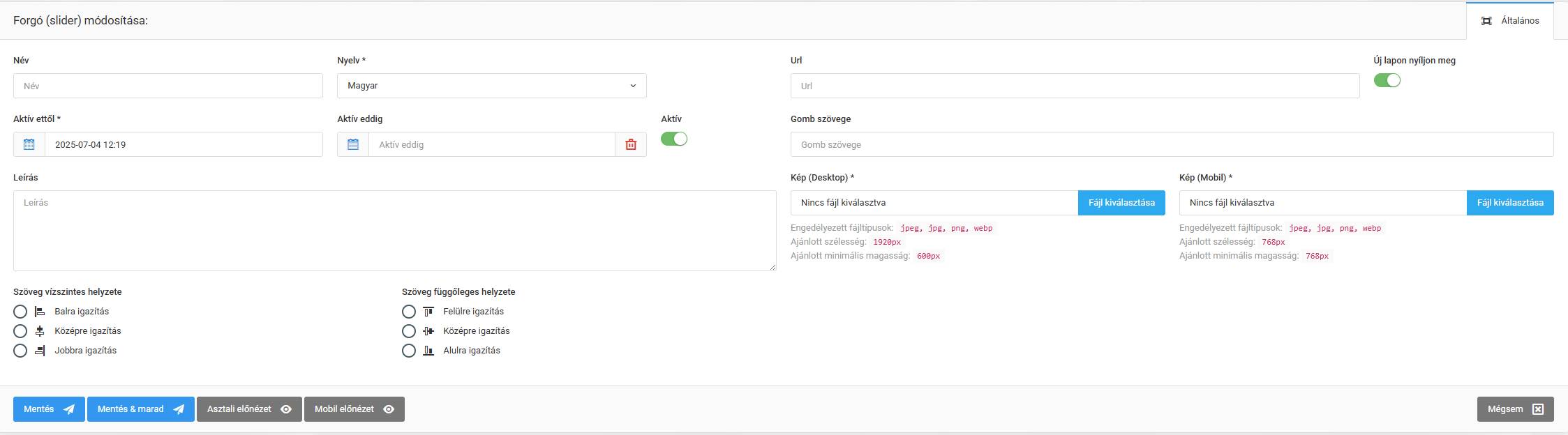
- Active (enabled by default) – Determines whether the slider is enabled or disabled. Disabled items will not appear on the homepage.
- Open in a new tab – We can choose whether the given link opens in a new tab or on the current page we are on.
- Description – Refers to the paragraph text displayed on the slider.

- URL and button text – The "Button Text" is the text displayed on the slider button, and the "URL" is the web address customers are redirected to when clicking the button.
- Image (Desktop) and image (Mobile) – Each slider must have separate images for desktop and mobile devices, serving as the slider's background images.
- Text horizontal position – The title, description, and button can be horizontally aligned to the left, right, or center of the slider.
- Text vertical position – Additionally, the title, description, and button can be vertically aligned to the top, bottom, or center of the slider.
The system allows for the scheduling and customization of the display of sliders, banners, and information bars. Users can define the start and end times for specific advertisements to be active on the website. This feature provides flexible campaign and promotion management through automated scheduling, enabling precise timing for content display. The scheduling options are available on the administrative list page, making it easier for webshop owners to utilize these tools.
Sliders cropping and preview
Both image upload fields provide administrators with the ability to customize slider images using Sellvio's integrated image cropping feature. Find out more about cropping uploaded images.
Store owners can preview the slider on both desktop and mobile devices before publishing by clicking the "Desktop Preview" or "Mobile Preview" button at the bottom of the slider creation form.
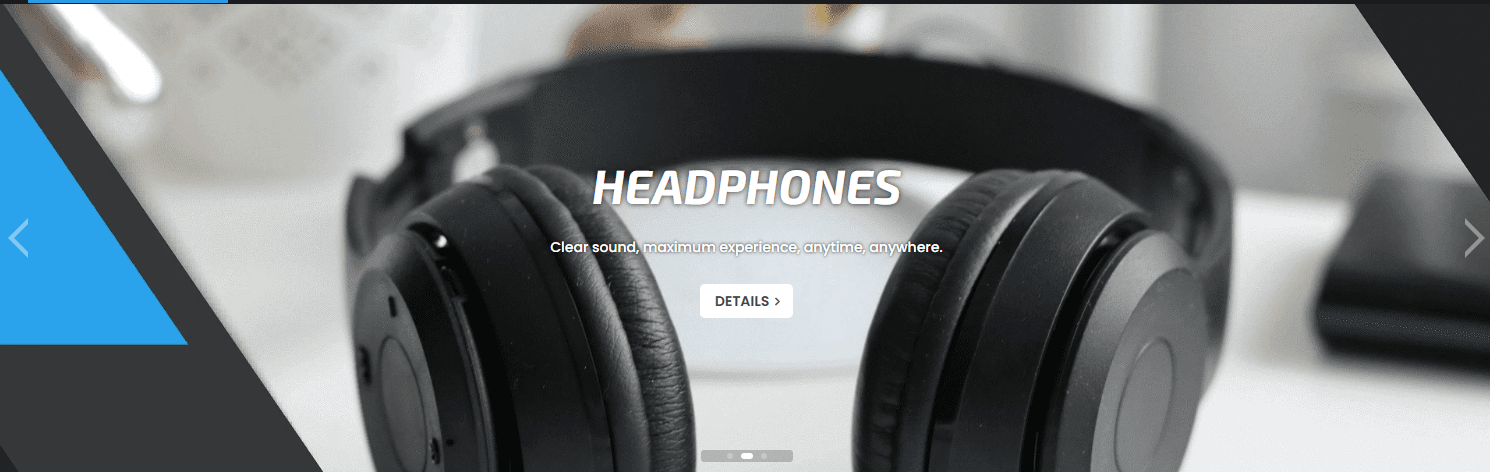
How do these sliders appear on desktop and mobile devices?
In the previous section, we provided a comprehensive explanation of how to create sliders. Now, let’s look at an example of how a slider appears in the webshop.