The product feed allows the product list to be exported with a single click in JSON or CSV format by logged-in users from their profile page.
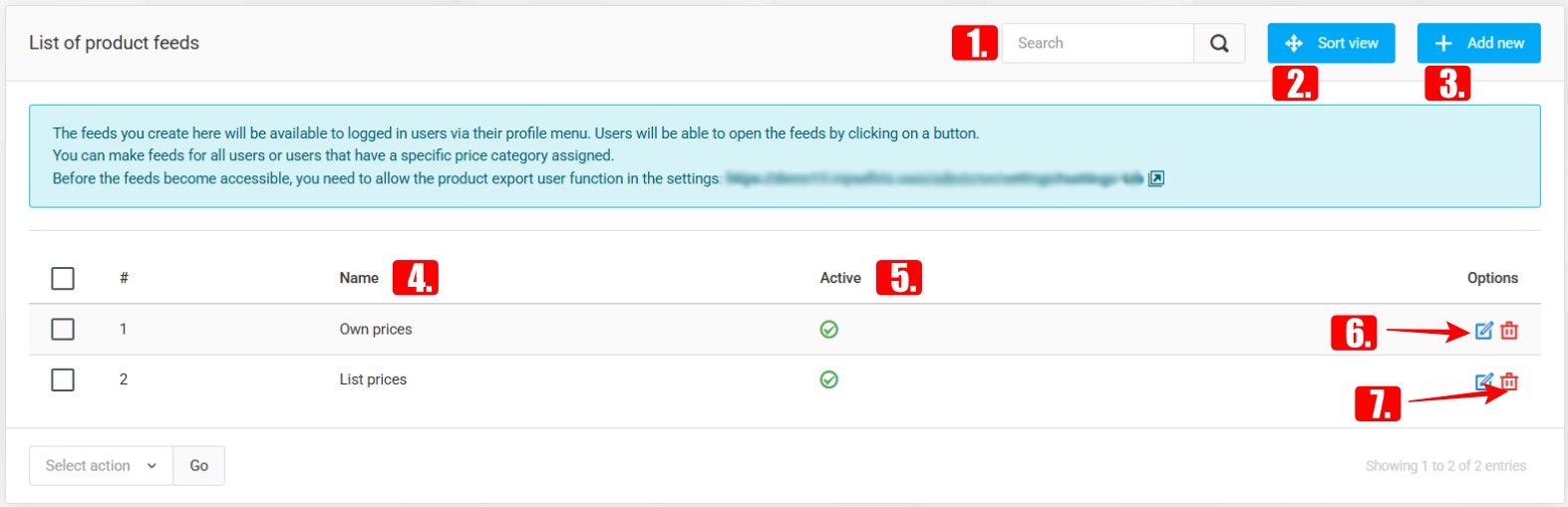
List of product feeds
Product feeds can be created, which are accessible to logged-in users through their profile menu. Feeds can be created for all users or only for those assigned to a specific pricing category.
IMPORTANT: Before use, the product export function must be enabled in the general settings for logged-in visitors.
With the search field, you can search for the names of existing product feeds.
Sort view – allows adjusting the order of the list.
Add new – creates a new product feed.
Name – displays the name of the feed.
Active – indicates whether the feed is active or inactive.
Clicking the Edit icon allows you to modify the selected feed.
Clicking the Delete icon permanently removes the feed.
Add or edit product feeds
With the following settings, you can customize how the product feed functions and appears.
- Name – the name of the product feed can be defined.
- Allowed price categories – specifies which pricing category users have access (if left empty, all users can access it).
- Active – enables or disables feed availability.
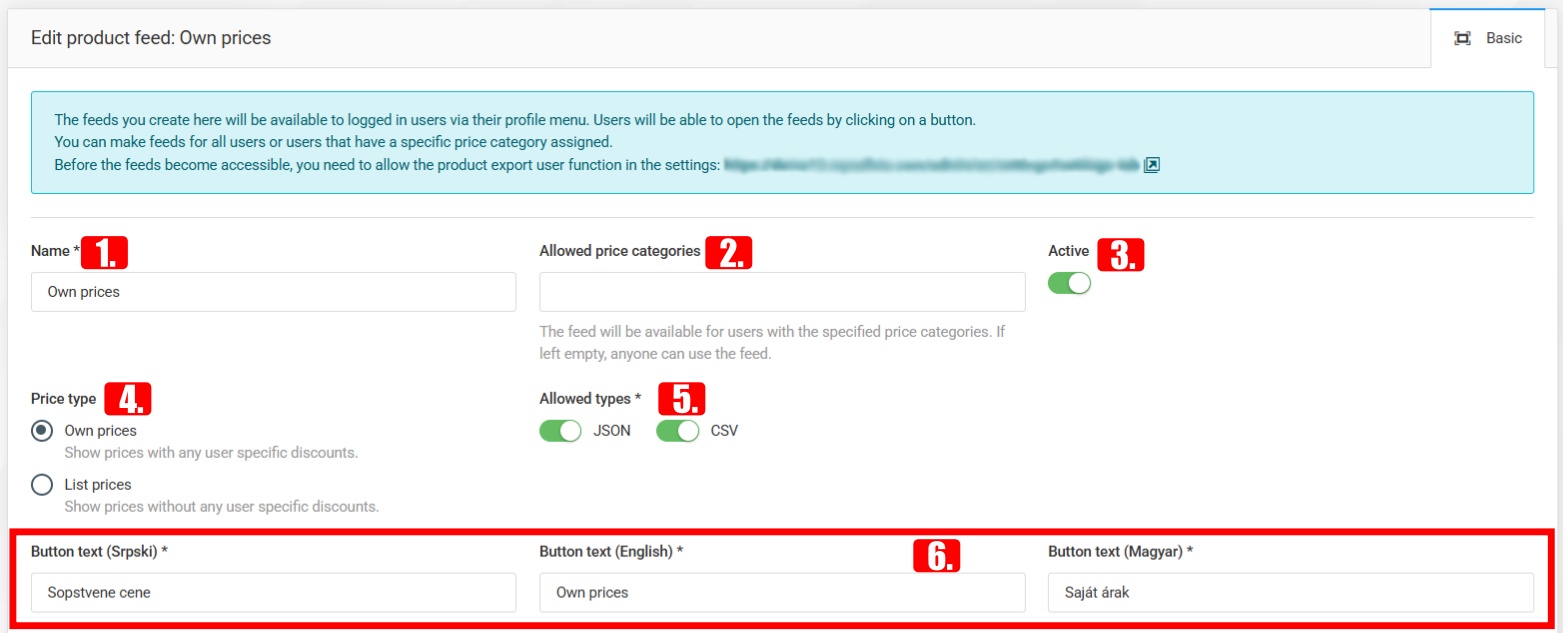
- Price type – select whether custom prices or list prices are displayed.
- Allowed types – enables export in JSON and/or CSV formats.
- Button text (multi-language) – defines the label text shown to users on the export button.
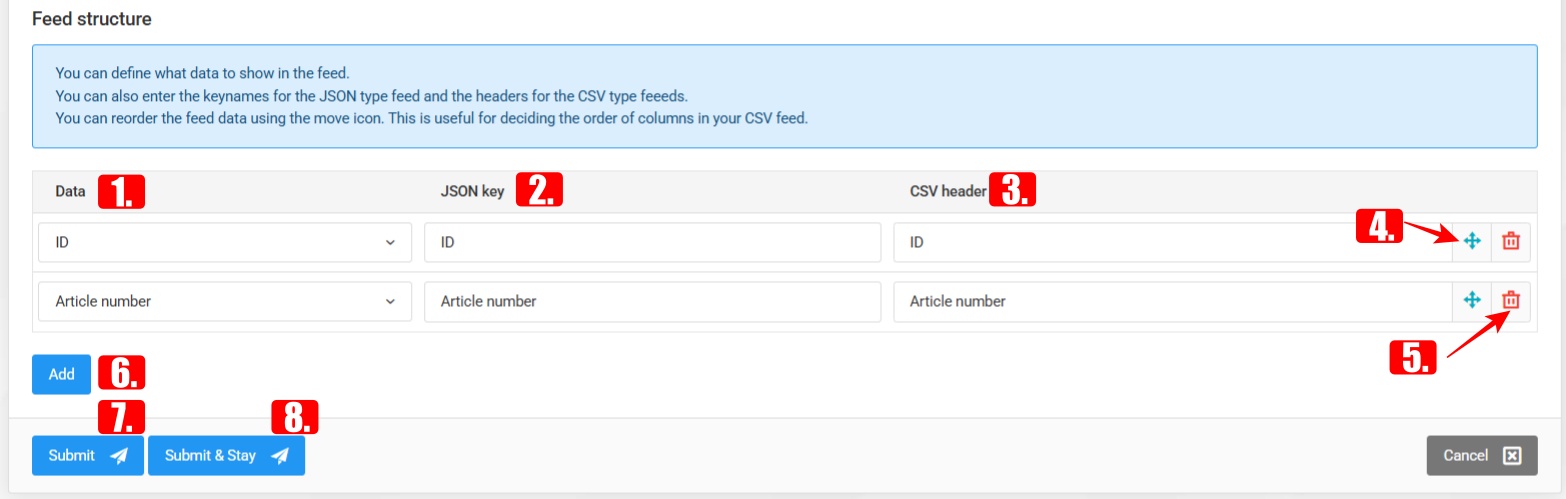
- Feed Structure
In this section, you can define which product data is included in the feed, as well as the key names for JSON export and column headers for CSV. The order and display of the selected data can be adjusted, making the feed easily customizable for export purposes.
- Data – selects which product information will be displayed (available: ID, Item number, EAN, Manufacturer number, Name, Short text, Description, Brand, Unit of measure, Net price, VAT %, Gross price, Discounted, New product, Available to order, Gross weight (g), Gross weight (kg), Main category, Category, Main cat. ID, Cat. ID, In stock, Quantity, Empty field).
- JSON key – the key name that will be used in the JSON output.

- CSV header – defines the column name that will appear in the CSV file.
- Reordering allows you to change the order of rows, determining how the data will appear in the export. Deleting removes the selected row from the feed structure.

- Delete can be used to remove the given row from the feed structure.
- Add – adds a new data field to the feed.
- Save – saves settings and returns to the list page.
- Save & Stay – saves settings and keeps the editor open for further updates.
- Product exports
When opening the user profile, the product lists will appear (if the assigned pricing category is set), and the data can be downloaded.
Displayed JSON file example:
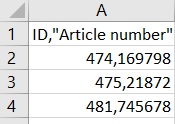
Displayed CSV file example: