Your logo and favicon are at the heart of your brand, no business would be complete without your store branding. These are the settings that bring your store's visual identity to life.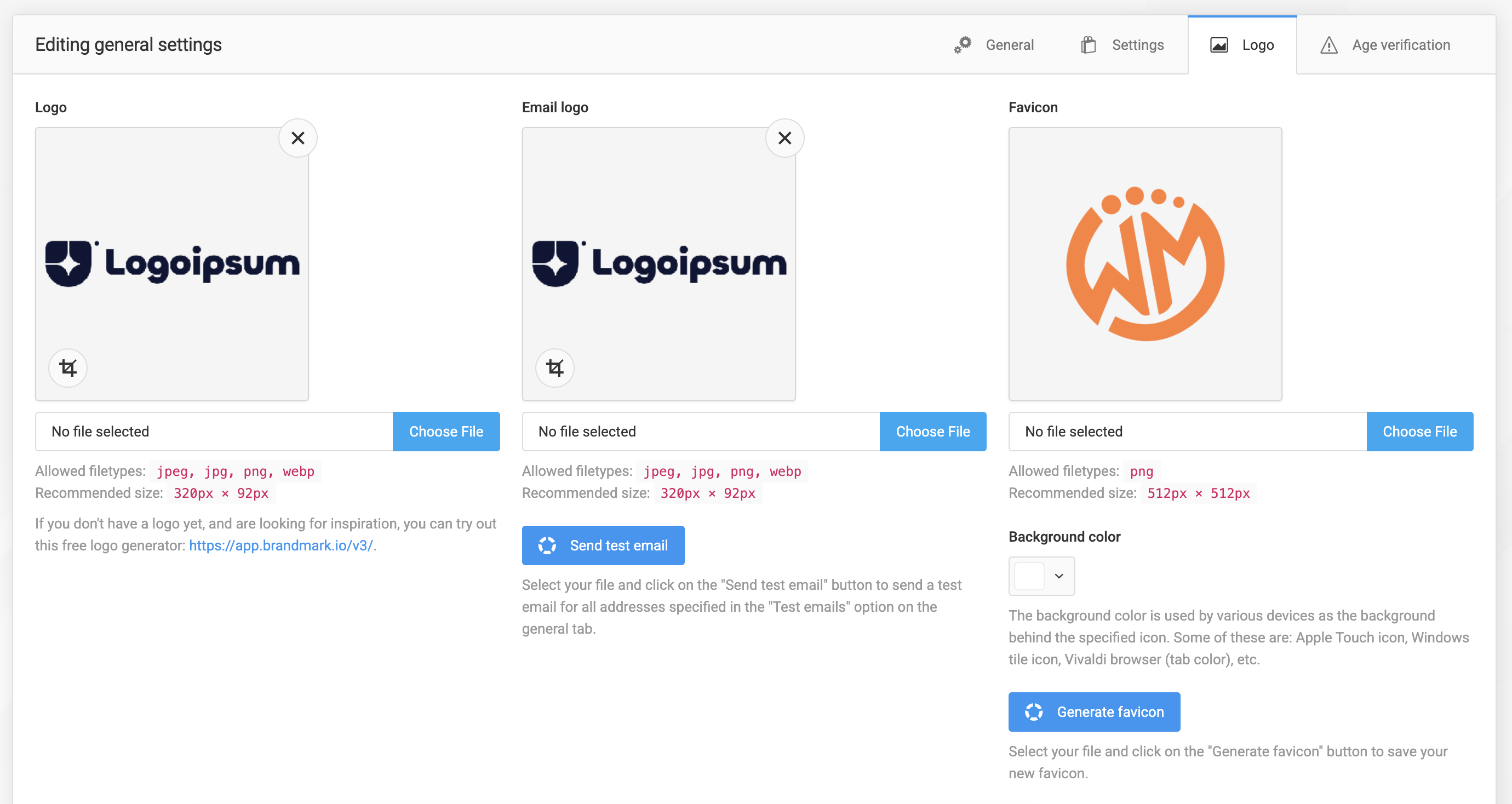
To configure your online store logo and favicon, click on "Settings" in the sidebar, then "General Settings". Then click on the "Logo" tab at the top of the page.
Logo
This is the image used in the header of your online store on desktop and mobile devices.
You can easily upload your business logo using the logo field. For the best visual experience and compatibility with the specified Sellvio themes, please make sure that your logo matches the recommended size indicated below the upload field.
Once you have uploaded your logo, click on the "Save" button at the bottom of the page to save your changes.
Email Logo
Your email logo is important for all automated emails sent by Sellvio.
Use the logo field to add your business logo. Make sure that your logo matches the recommended size for Sellvio themes for the best look, as shown below the upload field.
Once you have selected your email logo image, you can click the "Send Test Email" button to receive a preview email with your new logo. This allows you to review how the email will appear before clicking the "Save" button to apply your changes.
If you are happy with how your new logo will appear in your automated emails, simply save your changes by clicking the "Save" button at the bottom of the page.
Favicon
A favicon, short for "favourite icon", is a small and usually square icon associated with your website. It appears in your browser's address bar, next to the website name in your bookmarks or favourites list, and on your browser tabs.
To add your own favicon image to your Sellvio online store, select an image that meets the recommended size and format listed in the description below the upload box. Then simply click the "Generate Favicon" button to save your settings and apply the new favicon to your web store.