In this chapter, we review the special payment methods (services) supported by Sellvio.
Please note that not all payment methods are available in every country, and each payment method has its own list of supported currencies.
IMPORTANT: All payment methods provided with Sellvio require the store owner’s company to enter into a contract with the respective payment provider they wish to offer to their customers during the checkout process.
Once the contract is signed by the store owner and the payment provider, the provider will supply the necessary credentials and configuration parameters to the store owner. These can then be entered into the fields of the configuration form for the respective provider in Sellvio.
Let’s take a closer look at the special payment methods offered by Sellvio, one by one.
SellvioPay
SellvioPay is Sellvio’s own online payment solution, enabling the simple and secure handling of credit card and other digital payment methods in your webshop. With this service, customers can pay quickly and conveniently at checkout.
To use SellvioPay, registration is required, which can be initiated by filling out the application form. After successful registration, the service can be configured and activated in the admin interface by entering the necessary access credentials.
- Language selection - are available in multiple languages, allowing the entered data to be managed language-specifically.
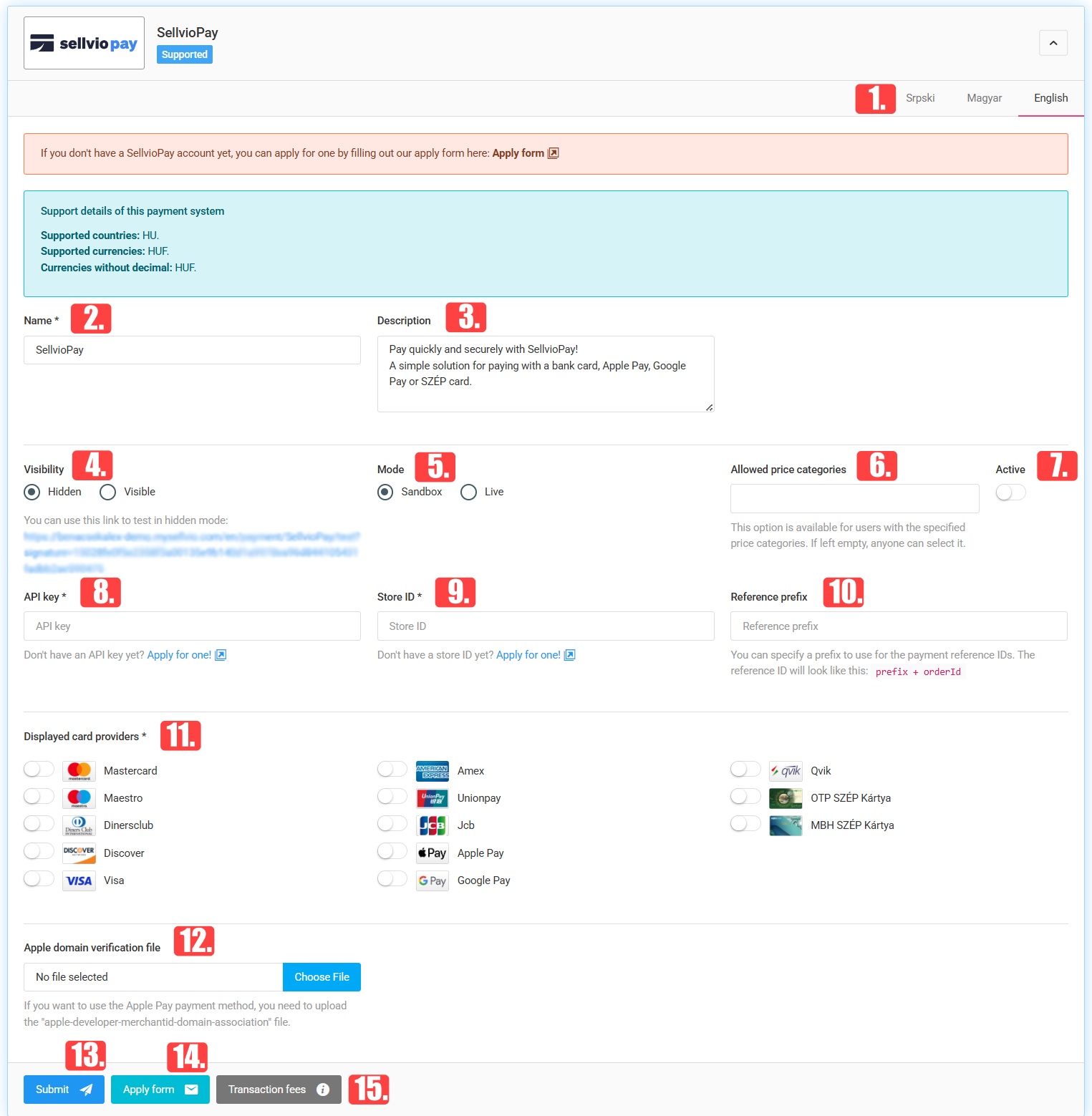
- Name Name – The name of the payment method, displayed to customers on the checkout page.
- Description - short description or helper text displayed לצד the payment method for customers.
- Visibility - Determines whether the payment method is visible to customers or available only in hidden mode for testing purposes.
- Mode Mode – Switch between test and live mode. In test mode, payments can be tried out; in live mode, real transactions are processed.
- Allowed price categories - Define which customer groups (e.g., wholesale or retail) can access the payment method.
- Active - or disable the payment method. When inactive, it does not appear at checkout.
- API kulcs - Identifier provided by Sellvio required to connect the service.
- Store ID - identifier of the webshop.
- Reference prefix - custom prefix for payment references to help identify transactions.
- Displayed card providers - which payment methods (e.g., Visa, Mastercard, Apple Pay, Google Pay, SZÉP cards, etc.) are shown to customers.
- Apple domain verification file - the required file for domain verification when using Apple Pay.
- Submit — Saving the settings.

- Apply form - form required to apply for the SellvioPay service.
- Transaction fees - fees associated with the payment service.
WSPay
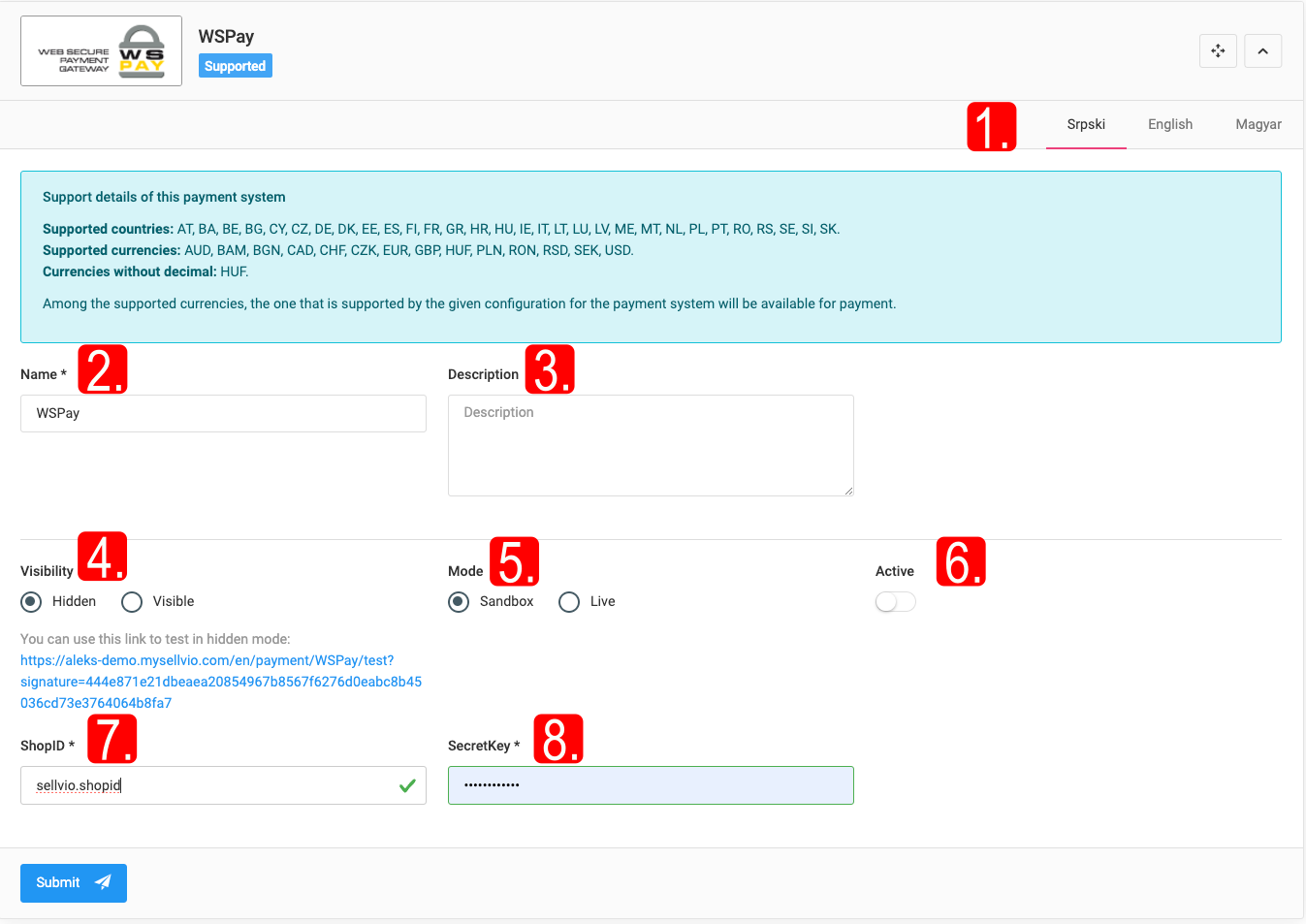
The WSPay special payment method settings can be accessed from the sidebar under Settings → Payment Options, then by switching to the Special Payment Methods tab.
- Using the language tabs, the language-specific settings for all currently active languages in the webshop are accessible.
- Name Name – this field allows administrators to assign a name to the service in the selected language from the list at the top of the service settings panel. This name will appear to webshop customers during checkout.
- Description - this field allows administrators to provide a short description or helper text for the service in the selected language from the list at the top of the service settings panel. This text appears as help text related to the payment type during checkout.
- Visibility - option controls the visibility of the payment type under the cart, even if marked as active. Visiting the link specified in this section makes the payment option accessible to the logged-in administrator. This workflow allows testing the payment gateway on a live site without it being visible to customers.
- Mode Mode – this setting allows administrators to switch between test and live modes. The test setting is primarily used for testing purposes. The provider supplies both test and live parameters to store owners. These parameters can be configured separately for both modes by switching between them.
- Active - determines whether the service is active or not. If deactivated, the payment method will not be available at checkout for customers or administrators, regardless of whether the service is in test or live mode.
- ShopID - identifier provided by WSPay.
- SecretKey - secret key provided by WSPay.
IMPORTANT: For testing purposes, the test ShopID and SecretKey must be entered in test mode, while the live ShopID and SecretKey should be provided in live mode.
Once everything is properly configured and tested, the store owners only need to switch the mode option to live and ensure that the payment type is active and visible.
PayPal
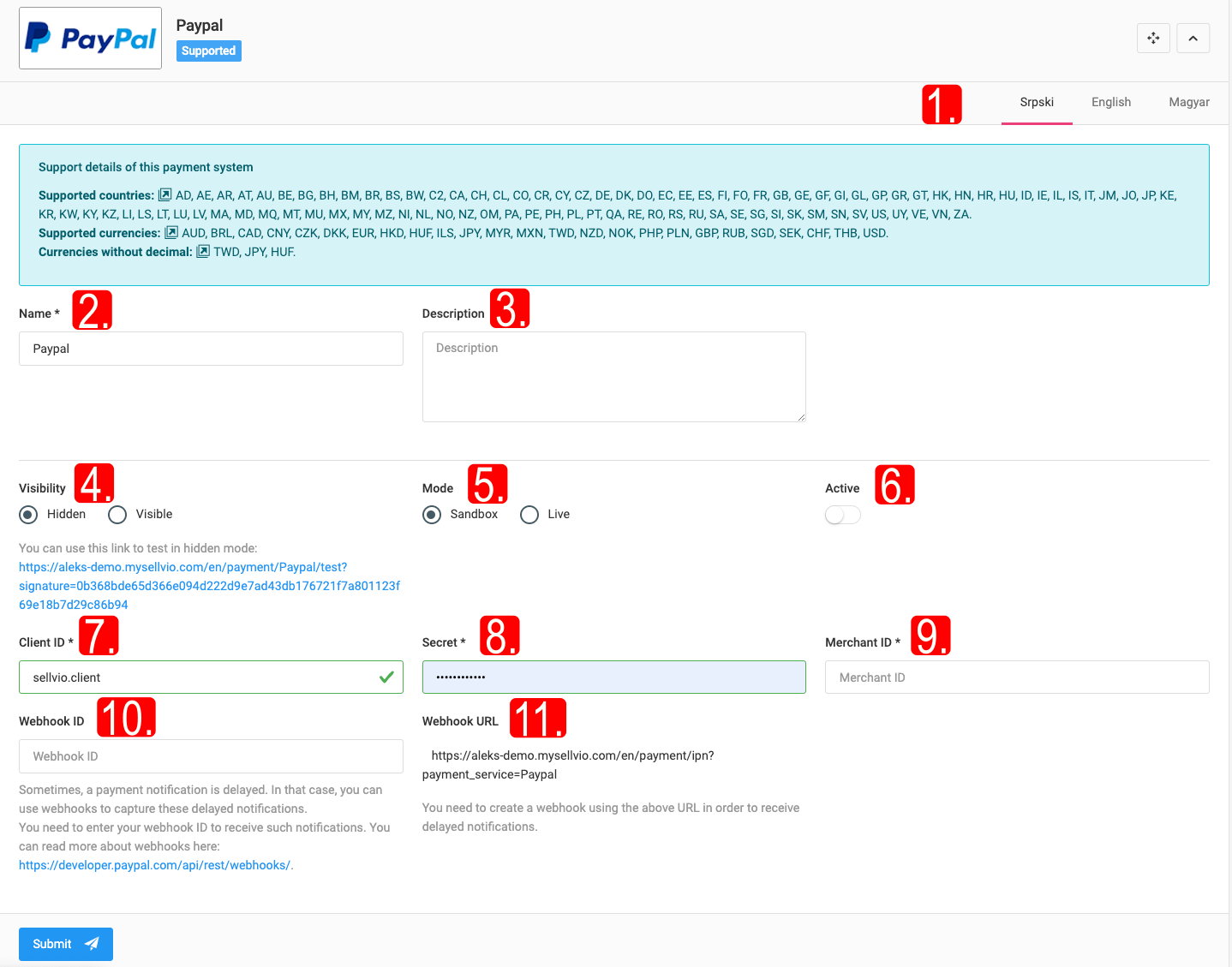
The PayPal special payment method settings can be accessed from the sidebar under Settings → Payment Options, then by switching to the Special Payment Methods tab.
- Using the language tabs, the language-specific settings for all currently active languages in the webshop are accessible.
- Name Name – this field allows administrators to assign a name to the service in the selected language from the list at the top of the service settings panel. This name will appear to webshop customers during checkout.
- Description - this field allows administrators to provide a short description or helper text for the service in the selected language from the list at the top of the service settings panel. This text appears as help text related to the payment type during checkout.
- Visibility - option controls the visibility of the payment type under the cart, even if marked as active. Visiting the link specified in this section makes the payment option accessible to the logged-in administrator. This workflow allows testing the payment gateway on a live site without it being visible to customers.
- Mode Mode – this setting allows administrators to switch between test and live modes. The test setting is primarily used for testing purposes. The provider supplies both test and live parameters to store owners. These parameters can be configured separately for both modes by switching between them.
- Active - determines whether the service is active or not. If deactivated, the payment method will not be available at checkout for customers or administrators, regardless of whether the service is in test or live mode.
- Client ID - unique identifier provided by PayPal, used to link the webshop with the store owner's PayPal account.
- Secret - provided by PayPal to secure communication between the webshop and PayPal servers.
- Merchant ID - known as the PayPal Business Account ID, this is a unique identifier associated with the PayPal business account.
- Webhook ID - webhook identifier used for push notifications about PayPal-related transactions.
- Webhook URL - address (URL) provided by Sellvio to PayPal, specifying where PayPal should send event data requests when certain events occur in your PayPal account. Webhooks enable real-time communication between PayPal systems and the webshop, allowing store owners to respond to events like payments, refunds, disputes, etc., without manual checks.
IMPORTANT: For testing purposes, the client's test ID, secret key, and merchant ID must be entered in test mode, while the client's live ID, secret key, and merchant ID must be provided in live mode.
Once everything is properly configured and tested, the store owners only need to switch the mode option to live and ensure that the payment type is active and visible.
ChipCard
Chip Card has been one of the leading payment transaction processors in the Republic of Serbia and the region since 2004, providing reliable and stable services to its clients, including banks, merchants, and other financial and non-financial organizations.
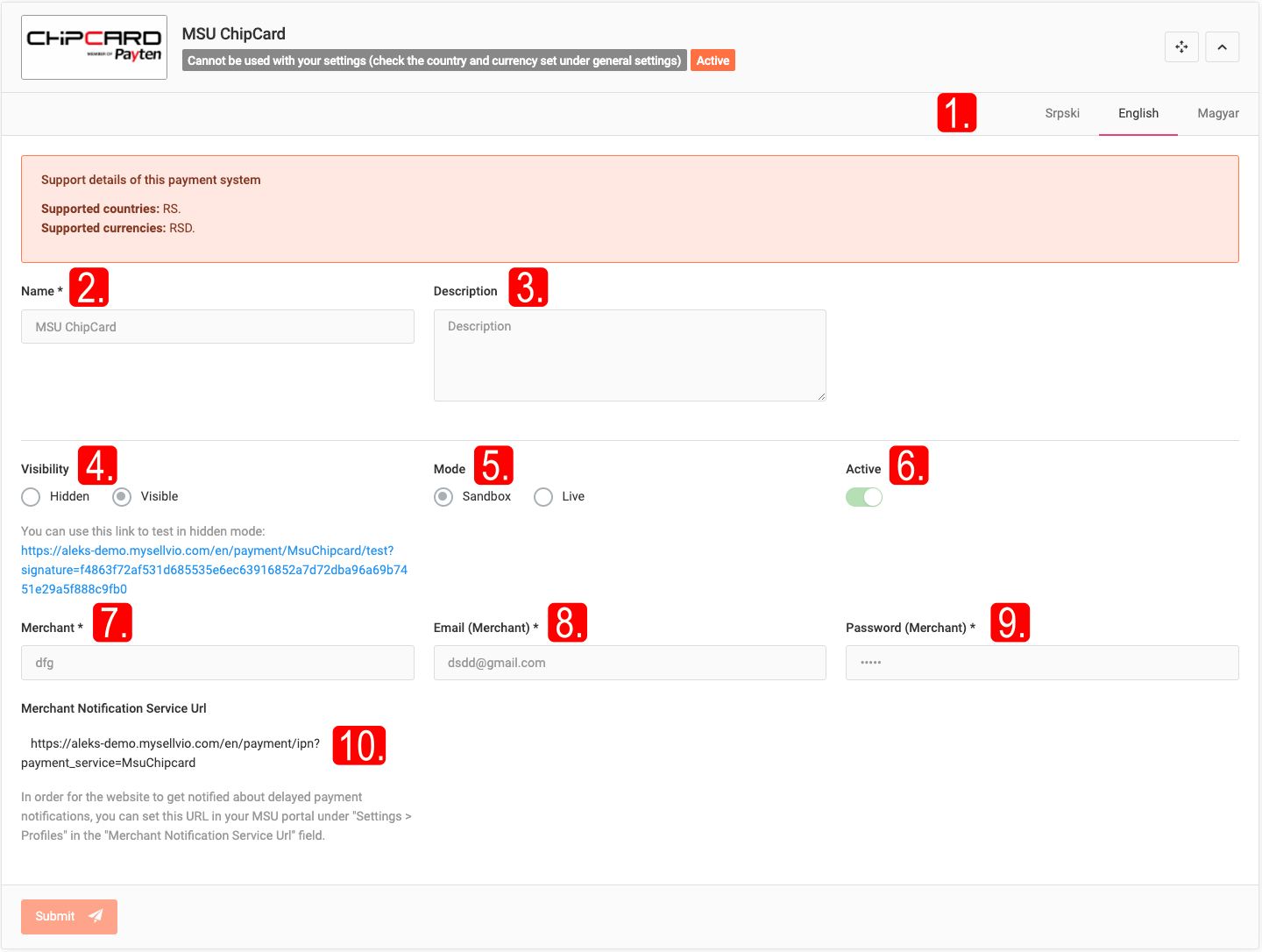
The ChipCard special payment method settings can be accessed from the sidebar under Settings → Payment Options, then by switching to the Special Payment Methods tab.
IMPORTANT: The Sellvio ChipCard integration is only supported in Serbia.
- (The language-specific fields — Name, Description, Visibility, Mode, Active - the same as for the payment methods above.)
- Merchant - under which the business is registered in the ChipCard system.
- Email (Merchant) - address with which the business is registered in the ChipCard system.
- Password - password used for authentication before processing online payment transactions with ChipCard.
- Merchant Notification Service Url - order for the website to receive notifications about delayed payments, business owners need to set the URL in the MSU portal by navigating to "Settings > Profiles" and entering the URL in the "Merchant Notification Service URL" field.
IMPORTANT: For testing purposes, the test Merchant, Email (Merchant), and Password (Merchant) should be provided in test mode, while the live Merchant, Email (Merchant), and Password (Merchant) should be provided in live mode.
Once everything is properly configured and tested, the store owners only need to switch the mode option to live and ensure that the payment type is active and visible.
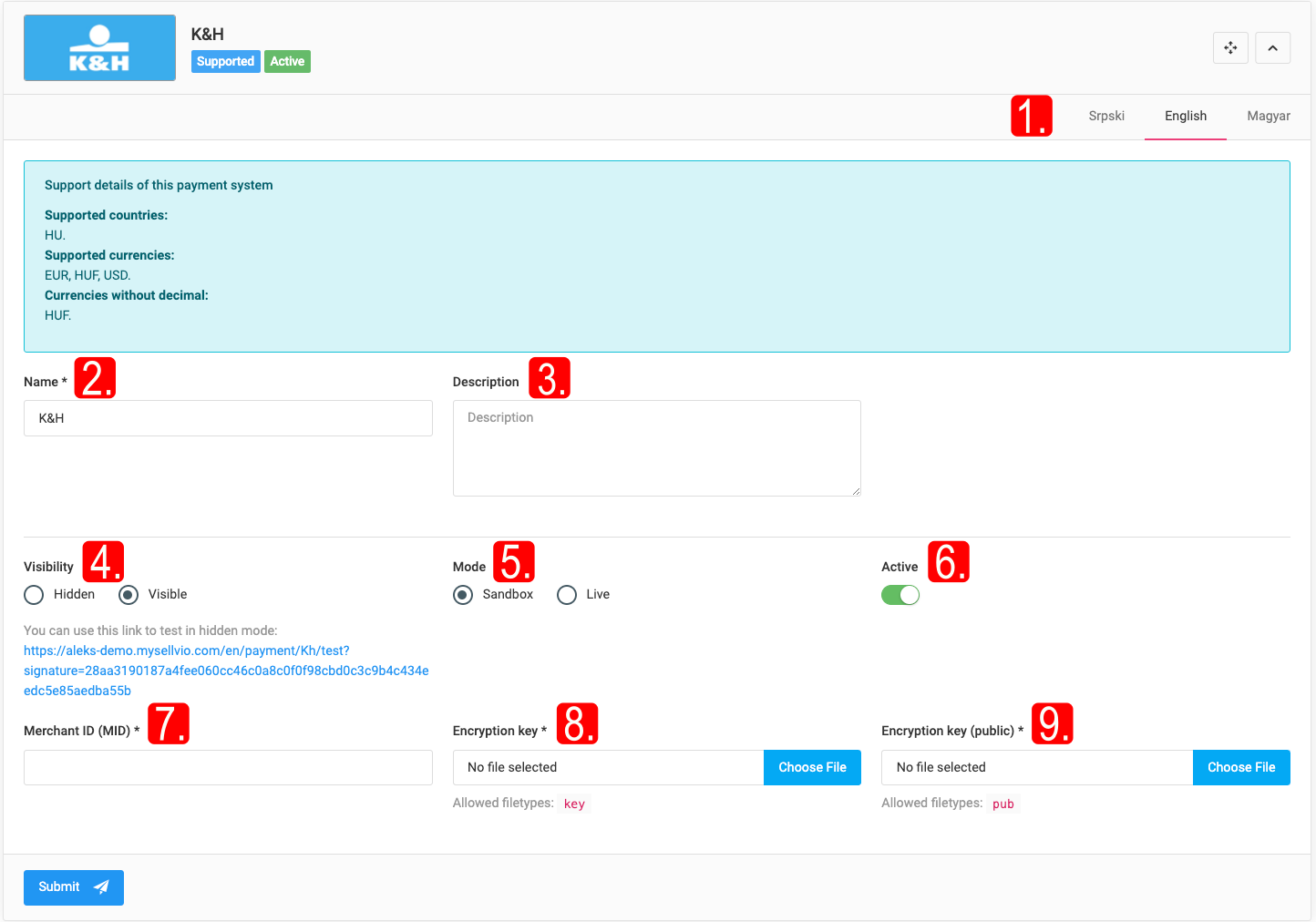
K&H Bank
IMPORTANT: The Sellvio K&H payment integration is only supported in Hungary.
The K&H Bank special payment method settings can be accessed in the sidebar under Settings → Payment Options, then by switching to the Special Payment Methods tab.
- Merchant ID (MID) - ID that store owners receive after signing the necessary contract with the bank.
- Encryption Key - Administrators must upload the encryption key file, which can be obtained from the K&H developer account provided by the bank.
- Public Encryption Key - Administrators must upload the public encryption key file, which can be obtained from the K&H developer account provided by the bank.
IMPORTANT: For testing purposes, the test Merchant ID, encryption key, and public encryption key must be provided in test mode, while the live Merchant ID, encryption key, and public encryption key must be provided in live mode.
Once everything has been properly configured and tested, store owners just need to switch the mode option to live and ensure that the payment method is active and visible.
Refund
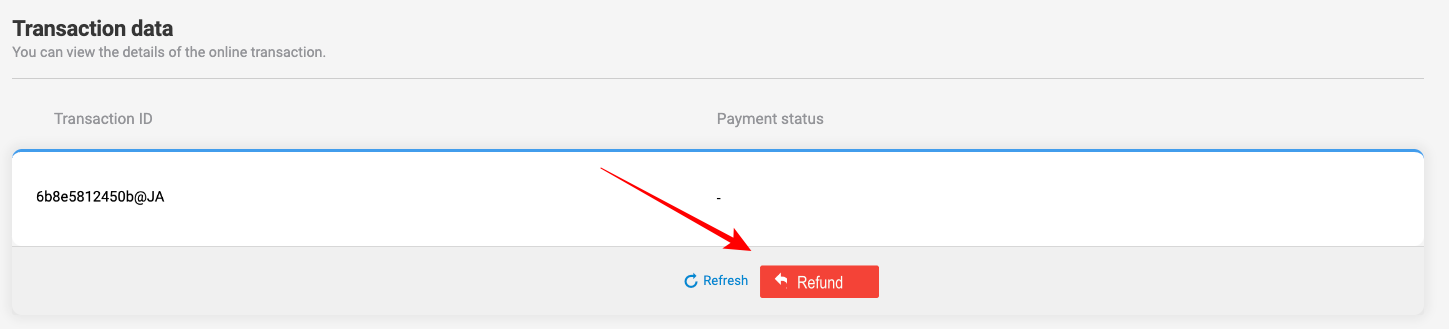
K&H not only provides an easy and fast online payment method for the webshop customers but also makes it easier for the webshop owner to refund the paid amount from the comfort of the Sellvio administration interface, if necessary.
To use this feature, go to the Webshop → Orders administration interface, find the order placed with the K&H special payment method for which you want to refund the amount, and click the "Edit Order" button.
Then, on the Edit Order page, in the Transaction Details section, click the "Refund" button.
In the Payment Status column of the table, you can see the current status of the online payment, which can be updated by clicking the "Update" button.
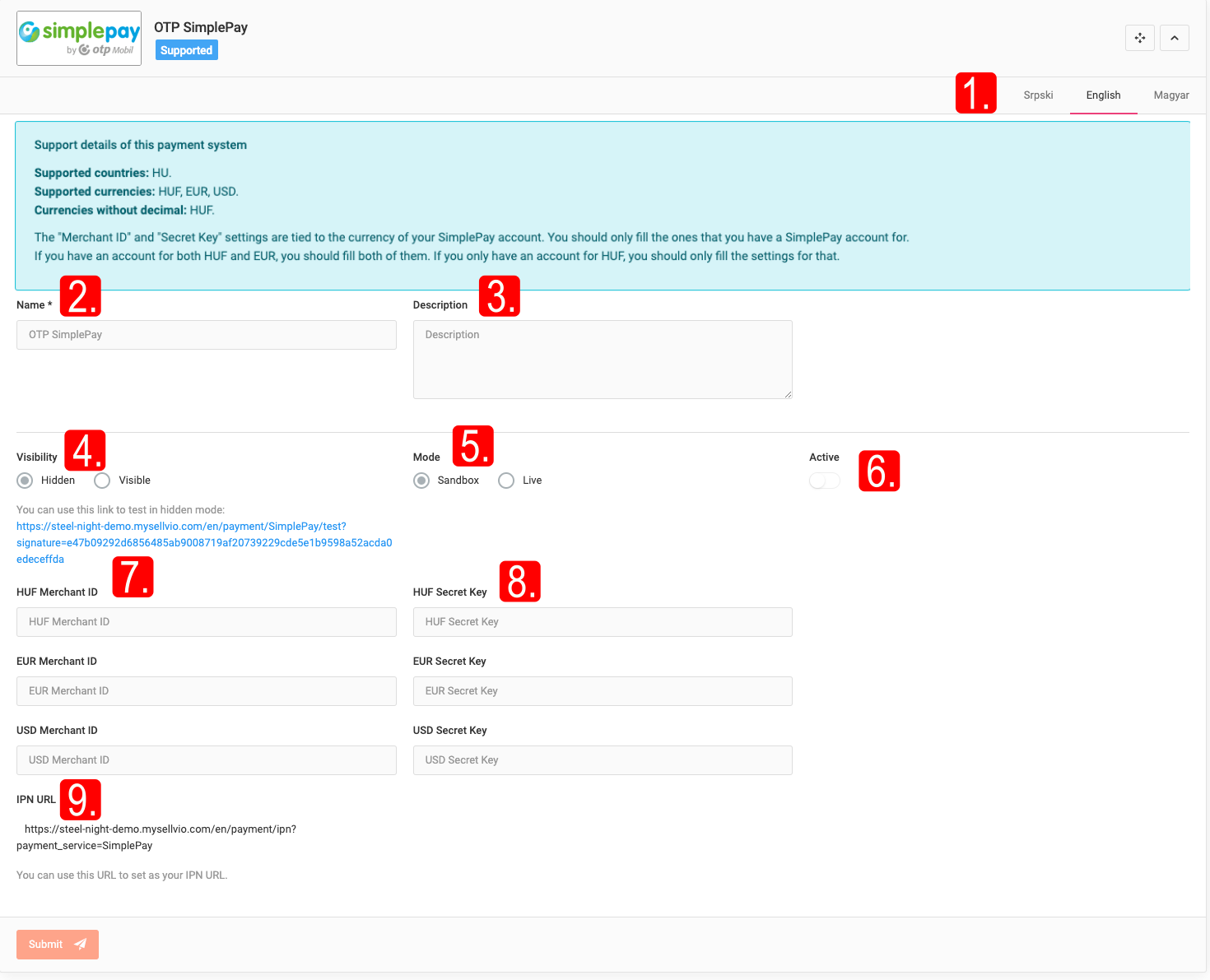
OTP Simple Pay
IMPORTANT: The Sellvio OTP Simple Pay payment integration is only supported in Hungary.
- Merchant IDs - gateway provides separate merchant IDs for each currency supported by their gateway.
- Titkos kulcs(ok) - payment gateway provides separate secret keys for each currency supported by their
- IPN URL: The Instant Payment Notification URL is a web address (URL) that webshop owners can provide within their OTP Simple Pay account. It is used to receive real-time notifications or IPN messages about payment transactions and order status changes.
IMPORTANT: For testing purposes, merchant IDs and secret keys should be provided in test mode, while live merchant IDs and secret keys must be provided in live mode.
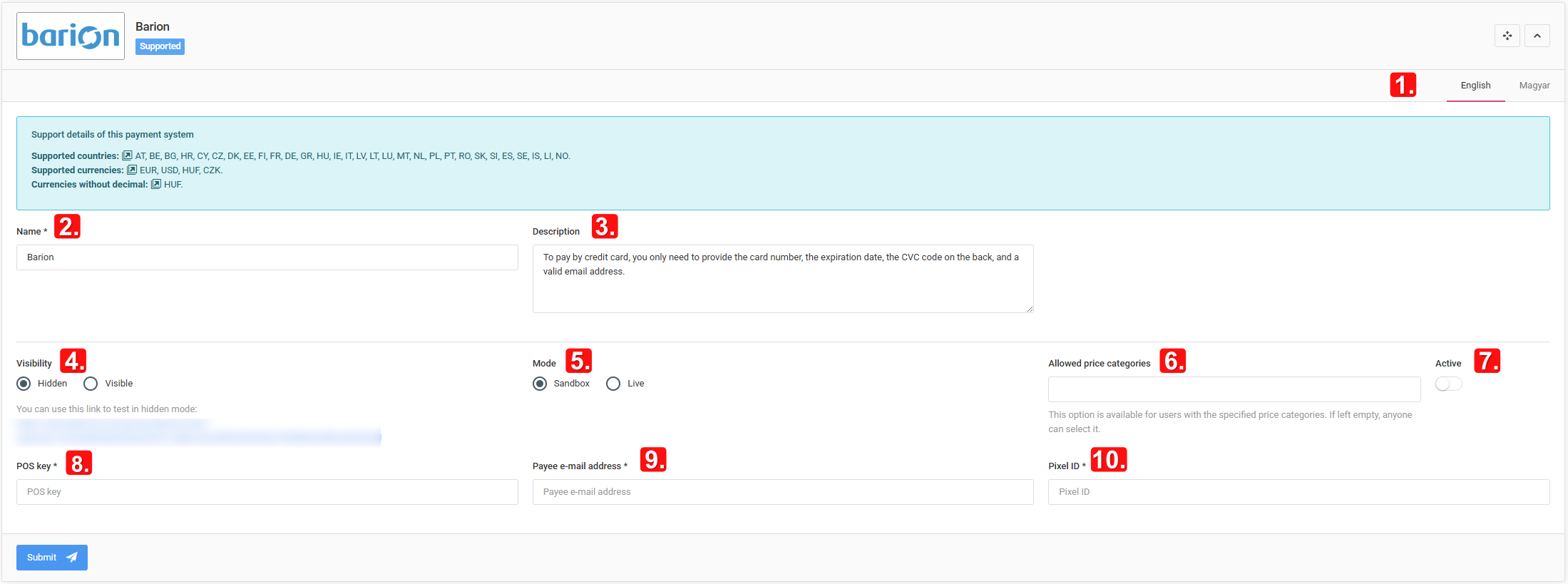
Barion
IMPORTANT: Barion is a Hungarian payment service. Serbia is currently NOT SUPPORTED by Barion.
- Allowed price categories - option available to users with the pricing entered in this field. If left empty, the option is available to everyone.
- POS key - store owner's POS (Point of Sale) key.
- Beneficiary Email Address – The email address that the store owner used to register their Barion account.
- Pixel ID — allows you to specify the tracking identifier associated with the payment service.
IMPORTANT: For testing purposes, the test POS key and the beneficiary email address must be entered in test mode, while the live POS key and the beneficiary email address should be used in live mode.
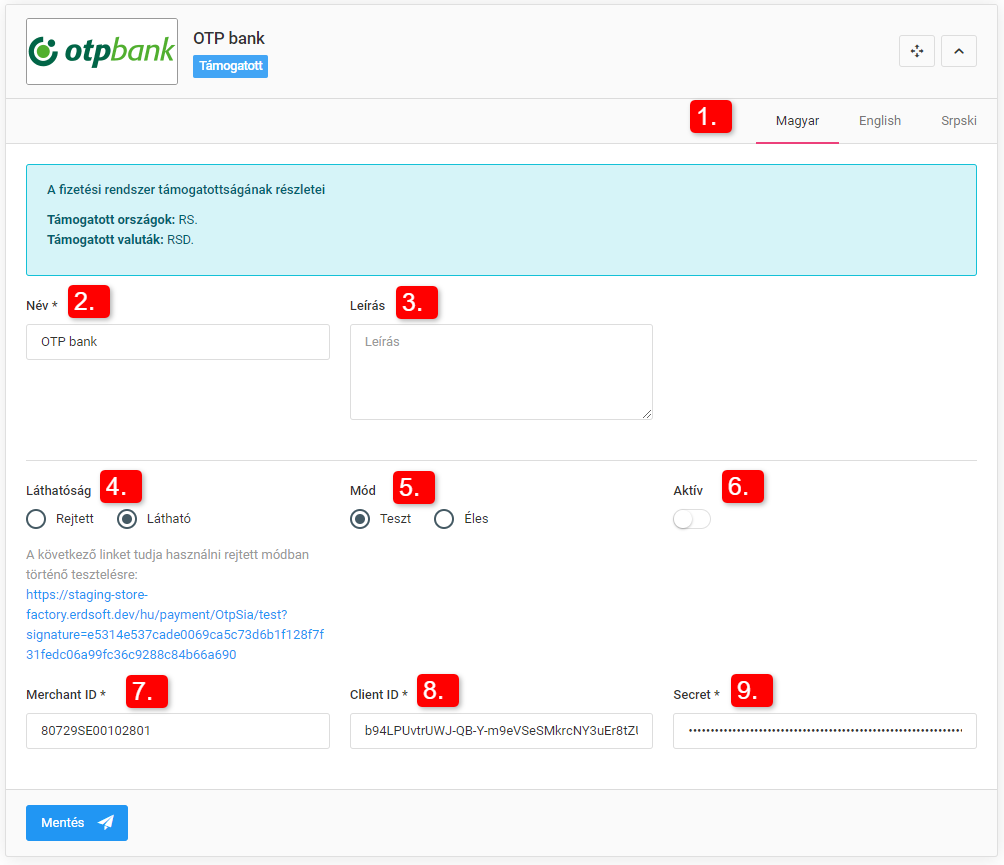
OTP Bank
IMPORTANT: The Sellvio OTP payment integration is only supported in Serbia.
Only companies holding an account with OTP bank are eligible to enter into a contract with the bank in order to receive the credentials required to set up the payment option.
IMPORTANT: For testing purposes the username, password, customer ID and terminal ID must be entered in test mode, while the live username, password, customer ID and terminal ID must be entered in live mode.
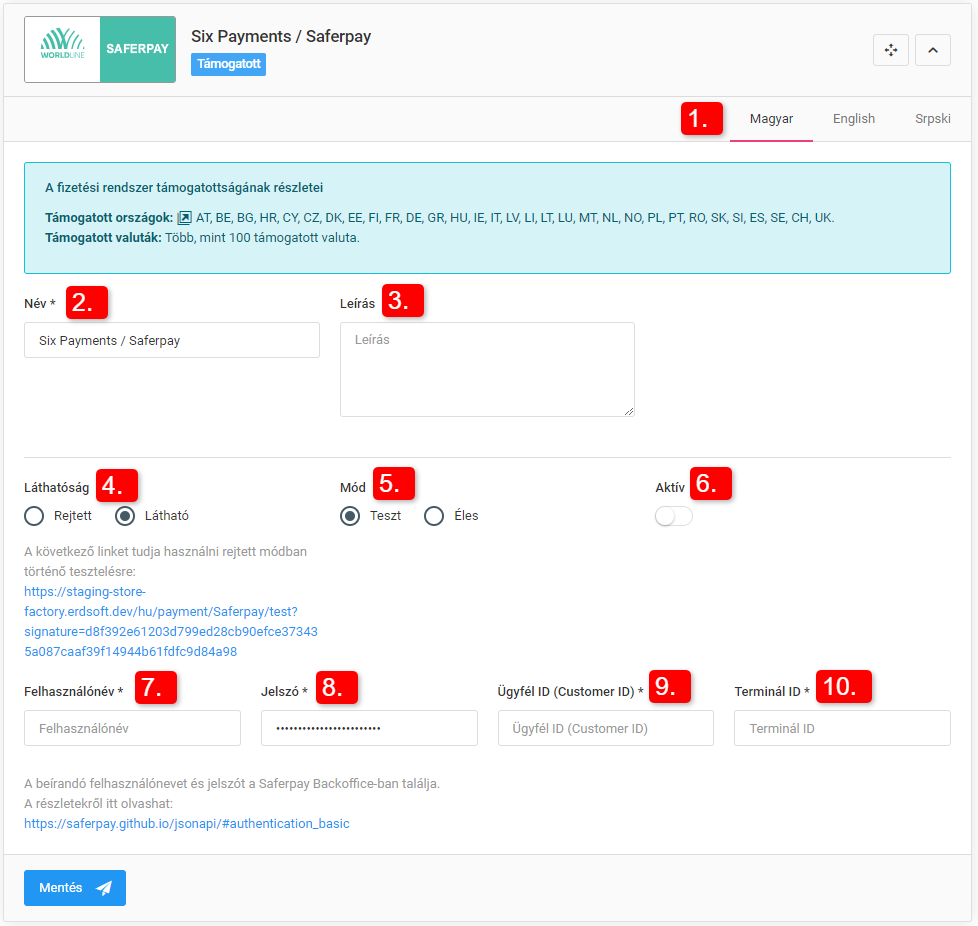
Six Payments / Saferpay
IMPORTANT: Saferpay is currently not supported in Serbia.
Store owners can create the required username and password under their Saferpay account. For more details, see: Saferpay JSON API
Username, Password, Customer ID, Terminal ID - can be generated/provided under the Saferpay account.
IMPORTANT: For testing purposes, test data must be entered in test mode, while live data must be entered in live mode.
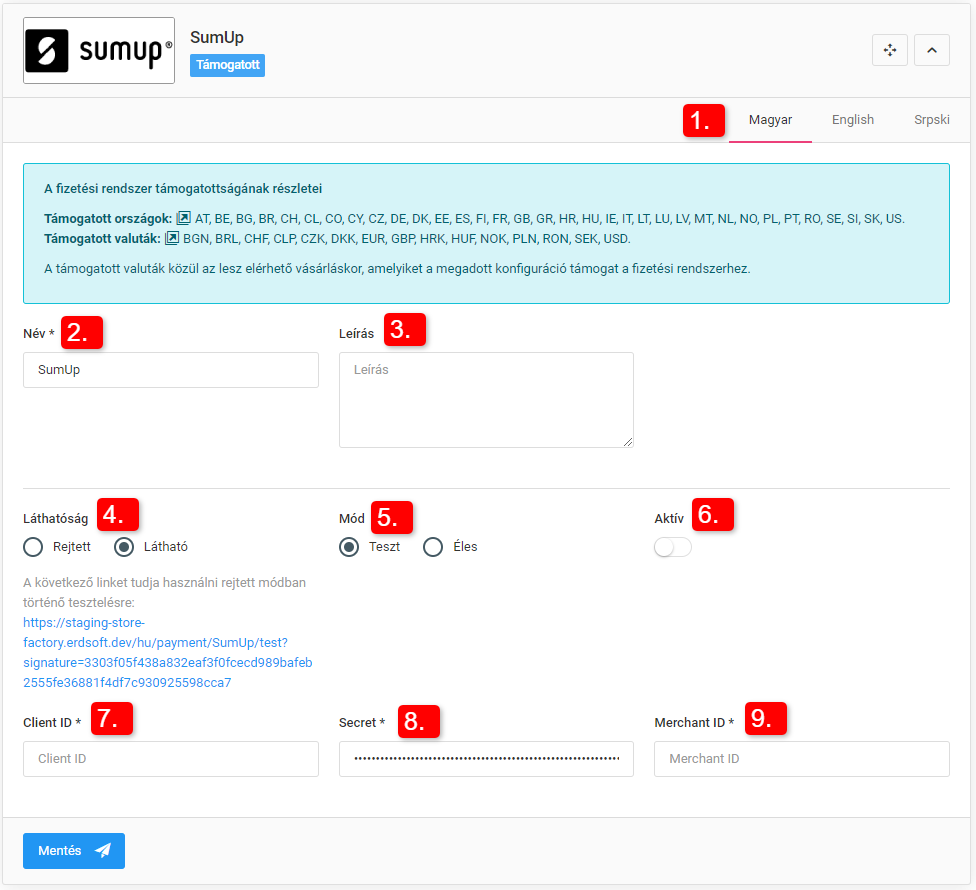
SumUp
IMPORTANT: SumUp is currently not supported in Serbia.
Client ID, Secret, Merchant ID - identifiers belonging to SumUp's payment processing services.
IMPORTANT: For testing purposes the test Client ID, key (Secret) and Merchant ID must be entered in test mode, while live data must be entered in live mode.
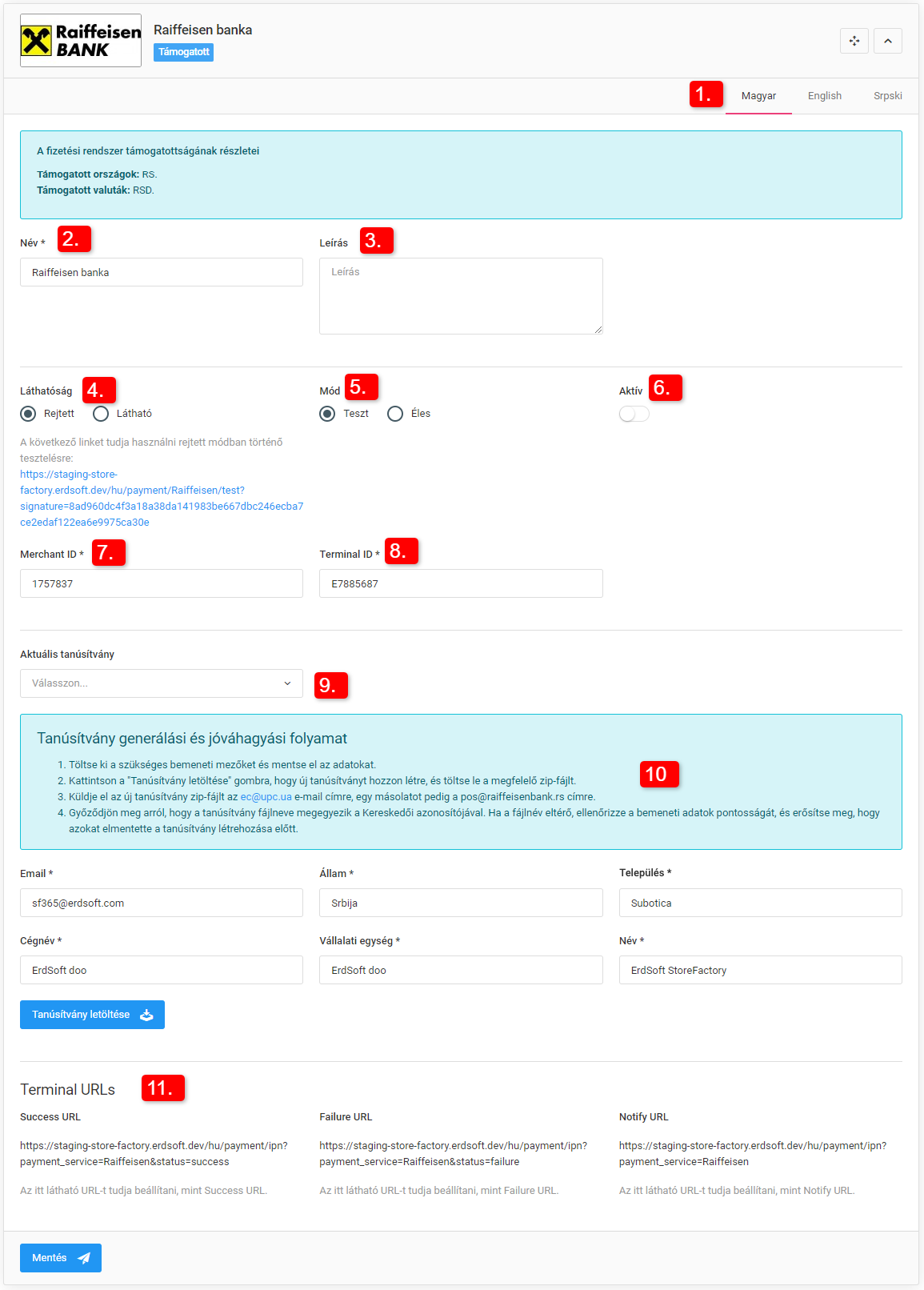
Raiffeisen Bank
IMPORTANT: The Sellvio OTP payment integration is only supported in Serbia.
Only companies holding an account at Raiffeisen Bank are eligible to enter into a contract with the bank.
Merchant ID, Terminal ID, Current certificate - the identifiers and certificate belonging to the Raiffeisen payment gateway system, which must be generated under the Sellvio Raiffeisen plugin settings, downloaded as a ZIP file and sent to the [email protected] and [email protected] e-mail addresses.
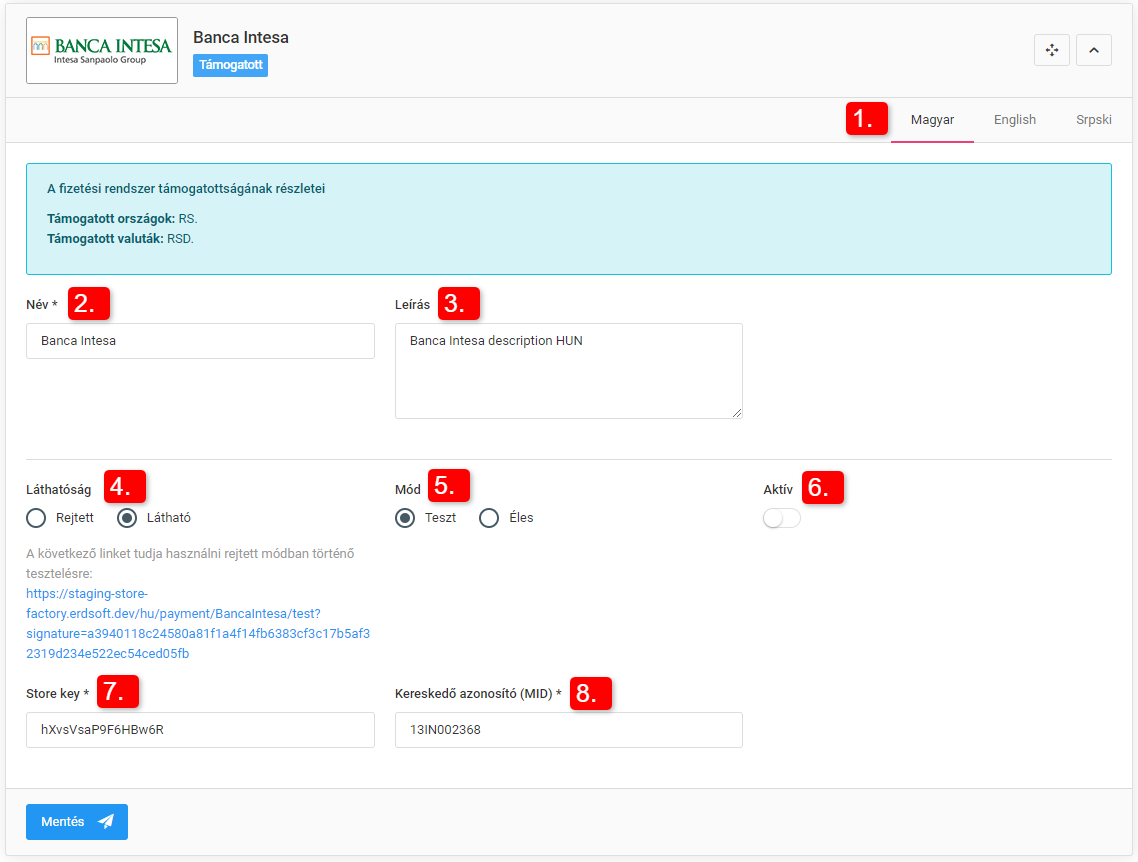
Banca Intesa Bank
IMPORTANT: The Sellvio OTP payment integration is only supported in Serbia.
Store key, Merchant ID (MID) - provided by the bank after signing the contract.
IMPORTANT: For testing purposes the test key (Store key) and Merchant ID must be entered in test mode, while live data must be entered in live mode.
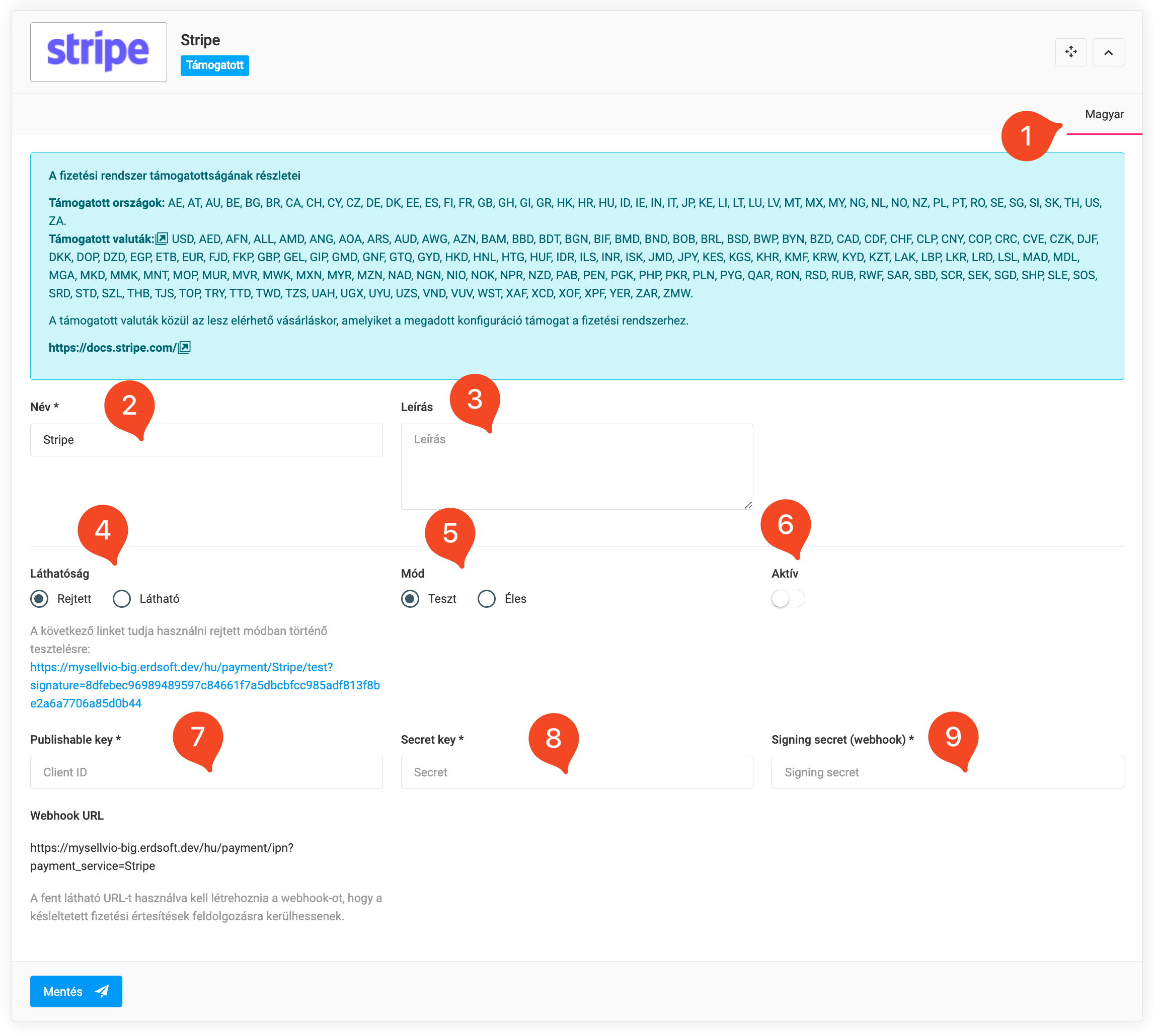
Stripe
IMPORTANT: Stripe is a payment method widely used across Europe.
Publishable Key, Secret Key, Signing Secret - can be created/configured in the Stripe Dashboard user interface.
IMPORTANT: For testing purposes, the test Publishable Key, Secret Key and Signing Secret Key must be entered in test mode, while the live ones in live mode.
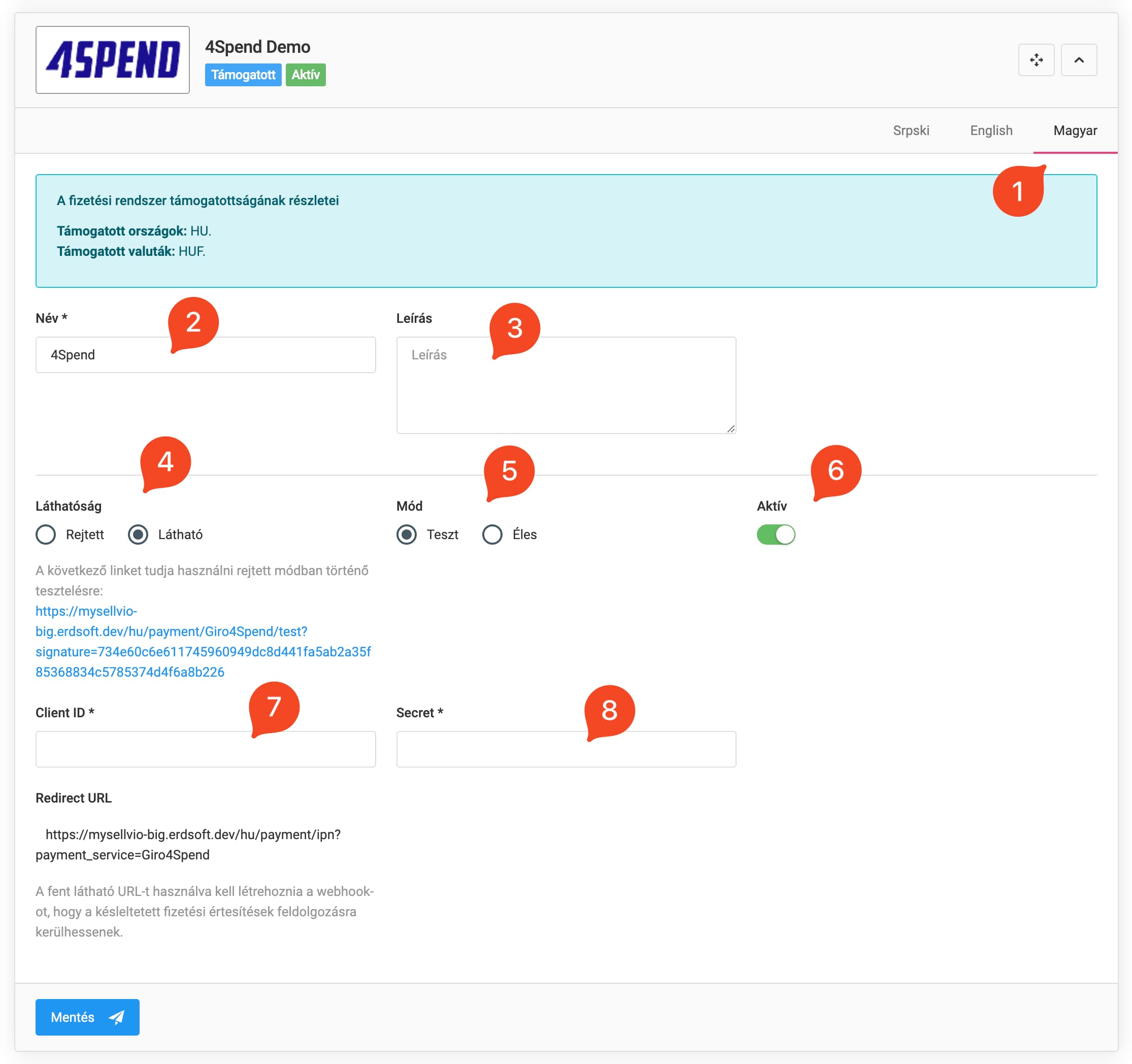
4Spend
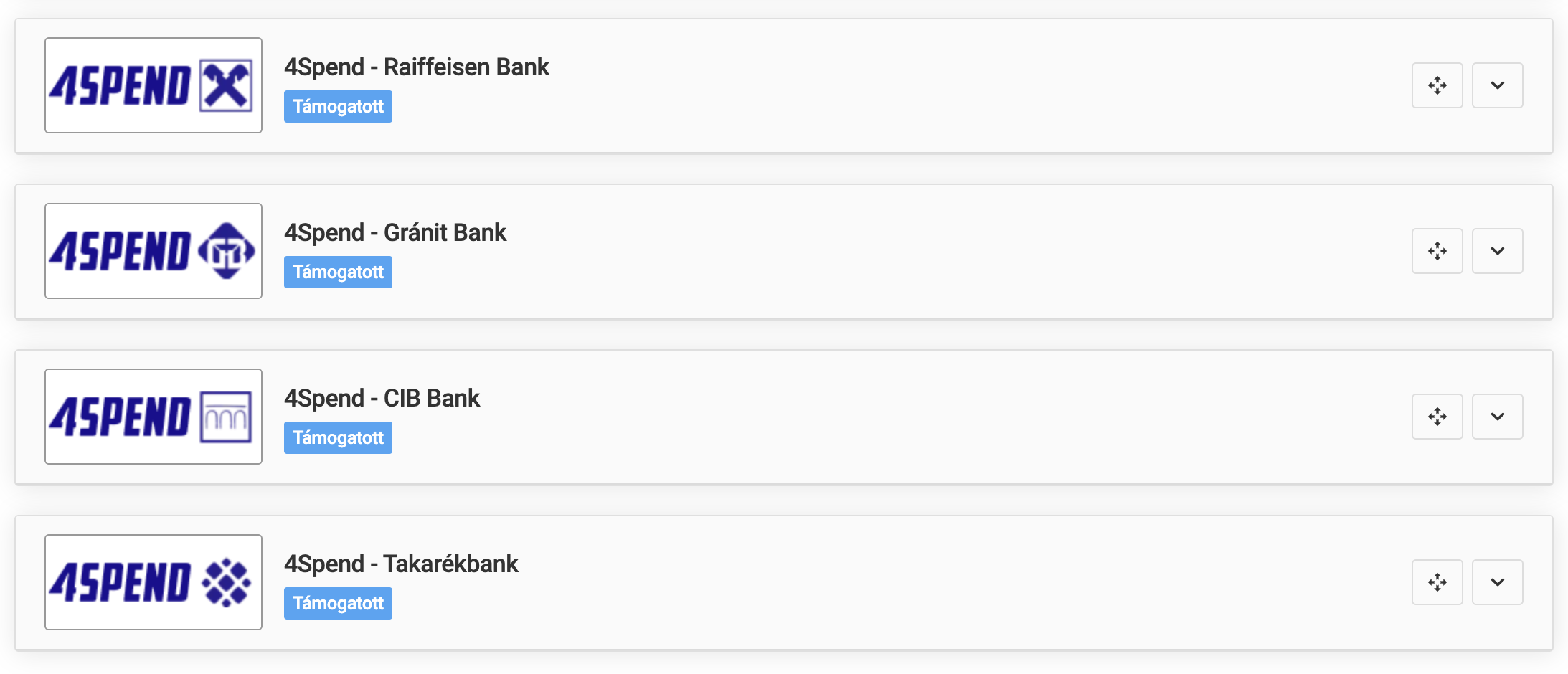
4Spend is a QR code-based service providing a fast and secure payment solution.
IMPORTANT: The Sellvio 4Spend payment method is currently available only to our webshop owners in Hungary, with HUF currency. It provides an instant payment solution for four Hungarian partner banks (Raiffeisen Bank, CIB Bank, Gránit Bank, Takarék Bank).
Client ID, Secret - provided by 4Spend after signing the contract.
IMPORTANT: For testing purposes, the test Client ID and Secret must be entered in test mode, and the live ones in live mode.
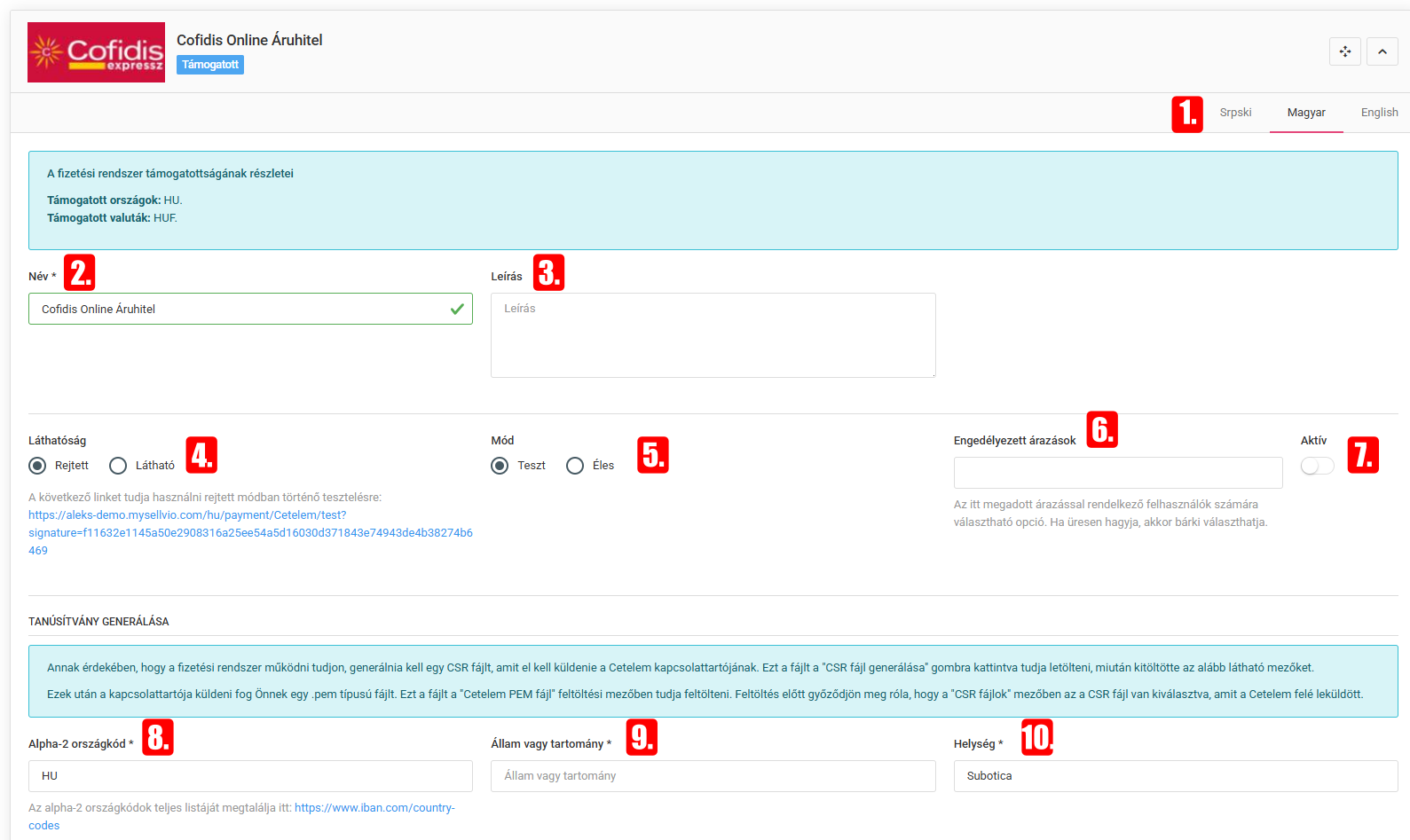
Cofidis Online
A modern and flexible financing solution for webshops that enables convenient online installment payment applications.
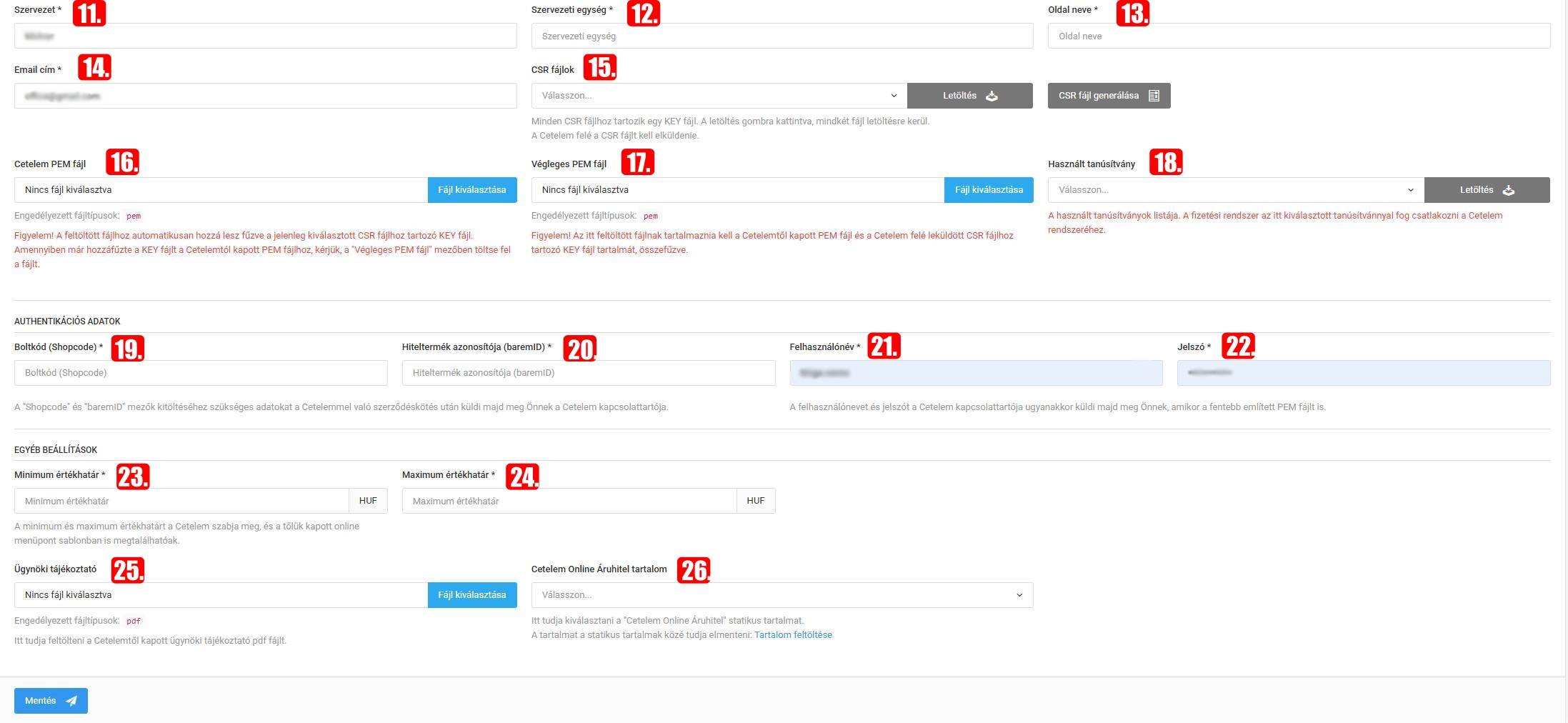
Alpha-2 code, State/province, Locality, Organization, Organizational unit, Site name, E-mail address - data required for generating a CSR file.
CSR files, Cofidis PEM file, Final PEM file, Certificate in use - files/settings required for certificate management.
Shop code (Shopcode), Credit product ID (baremID), Username, Password - the data received from your Cofidis contact person.
Minimum/Maximum value limit - determined by Cofidis.
Agent information sheet - uploading the agent information PDF file received from Cofidis.
Cofidis Online Consumer Credit content - selecting the related static content.
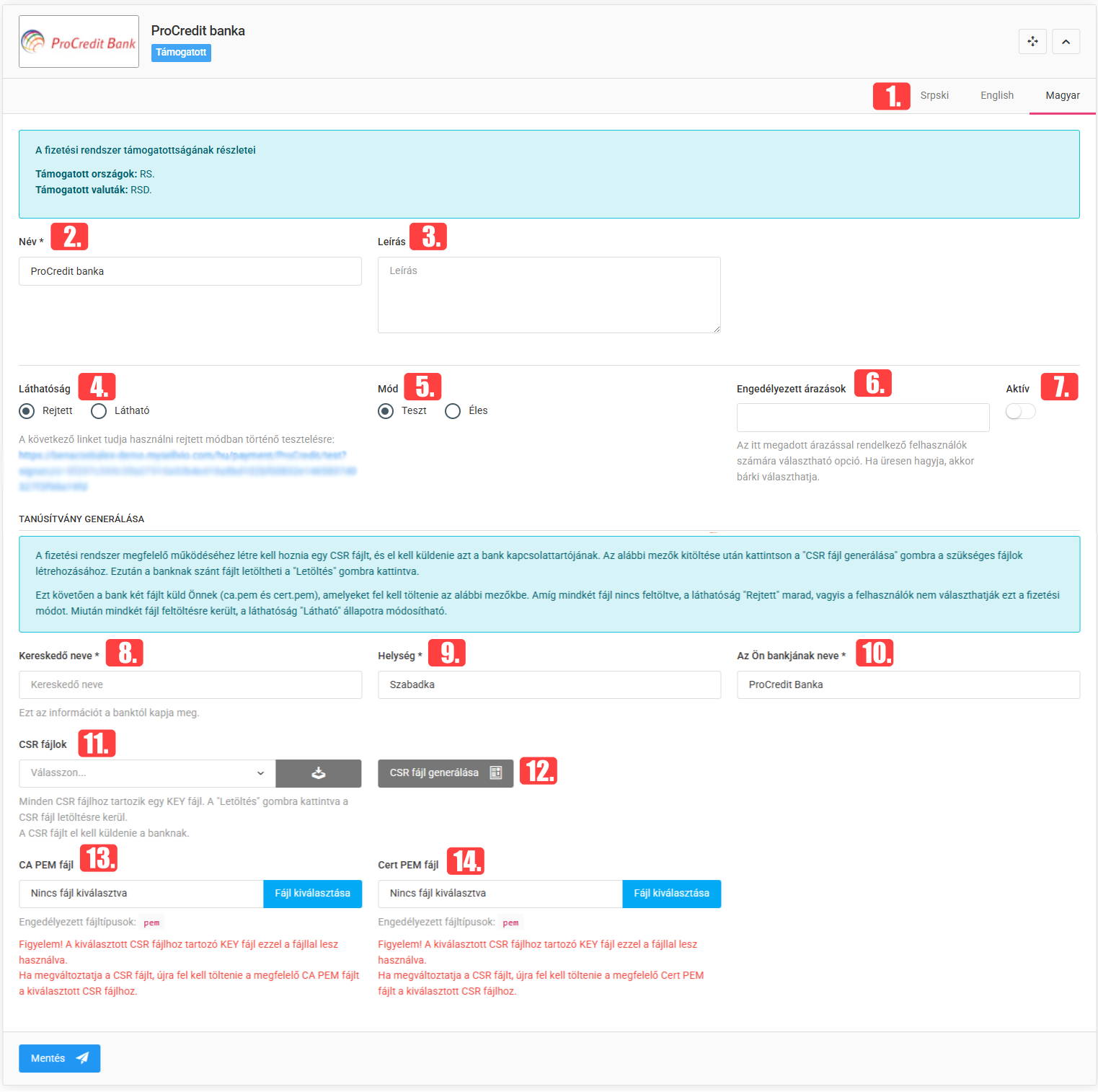
ProCredit Bank
Modern, business-focused financial institution for small and medium-sized enterprises.
Merchant ID, Client ID, Secret - provided by the bank after signing the contract.