As the number of products in the system increases, it becomes increasingly challenging to track which products have specific product tags assigned or which products have old prices added as discounts.
The Product List Administration Screen provides a convenient way to list products based on various product tags and criteria.
Let’s take a closer look at how store owners can use the different filters available on this administration page.
The Product List Administration Screen can be accessed from the administrative sidebar under Webshop → Product lists.
- The various options within the Categories sidebar allow administrators to list the products in the system according to different markers:
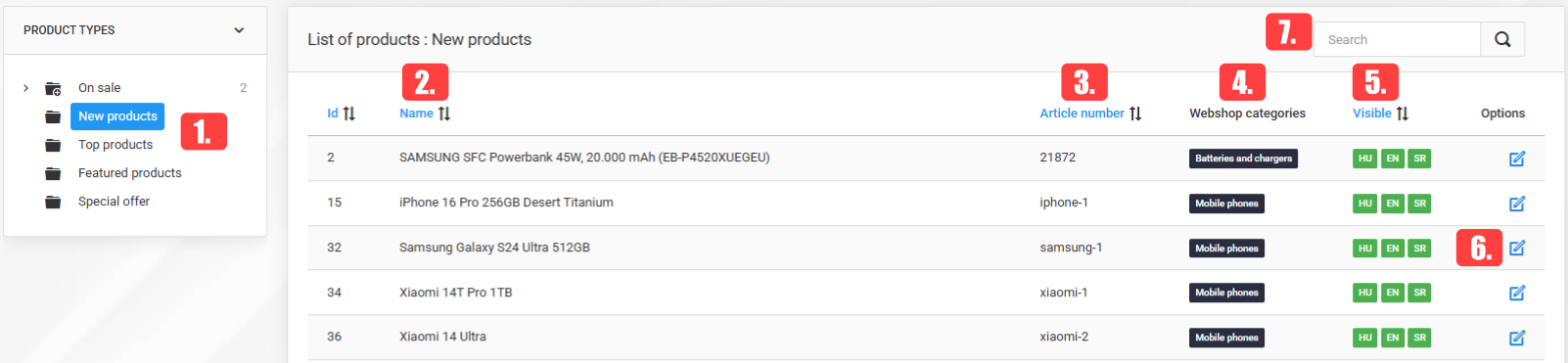
- On sale - The "Discounted" filter displays all products with a retail or wholesale price that includes an old price.
- New products - The "New Products" filter displays all products in the system marked as "New" (products where the "New Product" option is enabled).
- Top products - The filter lists all products in the system marked as "Top" (products where the "Top Product" option is enabled).
- Featured products - The filter lists all products in the system marked as "Featured Products" (products where the "Featured Product" option is enabled).
- Special offer - The filter lists all products in the system marked as "Special offer" (products where the "Special offer" option is enabled).
- Name - The product name.
- Article number - The product's SKU, which stands for Stock Keeping Unit.
- Webshop categories - Displays all categories to which the product belongs.
- Visible - Labels in this column indicate the languages in which the product is available. A "green" label means the product is active in the specified language.
- By clicking the Edit button, the product editing administration screen opens in a new browser tab, providing convenient access to the product settings.
- To search for a product, enter its name in the search bar and click the magnifying glass icon.