Accessible from the sidebar under Settings → Info Blocks.
Every Sellvio theme includes a dedicated section on the homepage designed to showcase up to five customizable information blocks, offering flexibility to highlight the unique features of your online store or business.
Example:
On the Information Blocks administration screen, store owners can create a personalized collection of information blocks to display on their store's homepage.
Each information block can be equipped with a unique URL, enabling users to be directed to any section of the store or an external website on the internet.
Title – The title displayed within the information block.
URL – The URL users will be redirected to when clicking on the information block on the homepage.
To search for a specific information block, simply type its title into the search bar and click the "magnifying glass" icon.
Information blocks can be manually sorted on the Information Blocks Administration Screen, and their top-to-bottom order determines their left-to-right placement on the homepage. Deactivated information blocks will not be displayed.
Clicking the "edit" button allows administrators to modify existing information blocks.
If an information block is no longer needed, it can be deleted by clicking the "trash" icon.
New information blocks can be added at any time by clicking the "Add New" button.
Please note that e-commerce themes can display up to five information blocks on the homepage. Regardless of how many blocks are created, only the first five will be displayed. Deactivated blocks do not count toward this limit and are excluded.
Information blocks can be manually sorted, and their top-to-bottom order determines their left-to-right placement on the store's homepage.
Adding or Editing Information Blocks
Creating information blocks in Sellvio is as simple as other processes you have encountered so far.
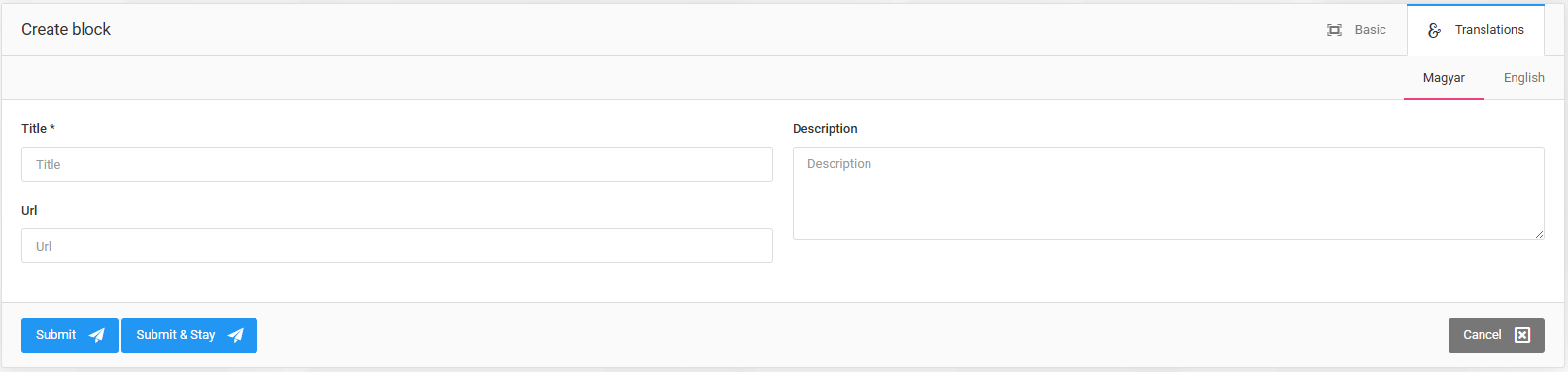
- Title – The title of the information block as it appears on the homepage.

- Active (enabled by default) – Determines whether the information block will be displayed on the homepage.

- Description – A short text that appears within the information block.

- URL – Providing a URL makes the information block clickable, redirecting customers to the linked page.
- Icon – Administrators can optionally select an icon for the information block from a predefined list of icons.
If the webshop supports multiple languages, the title of the information block must be provided in all supported languages, and the corresponding links can be specified separately. This ensures consistency on the homepage when customers change the website language.
The changes cannot be saved until the title is filled in for all active languages.