The Delivery Routes feature aims to assist in organizing and tracking deliveries, especially in cases where a business or retail network manages multiple transportation routes.
This feature is only available in the administrative interface and provides support for grouping orders, optimizing routes, and efficiently managing the delivery process.
The Delivery Routes administrative screen can be accessed from the sidebar under the Webshop → Delivery Routes menu.
Delivery Routes
In order for the orders to appear in the Delivery Routes menu, the status must first be set to "Prepared for Delivery Route" in the Orders menu (it should be created under Settings -> Order statuses menu item).
After setting the status, the orders will appear in the Delivery Routes menu:
- Name – The name of the customer.

- Delivery Address – The exact city, street, and house number where the product needs to be delivered.
- Contact Phone – The customer’s phone number.
- Time – The exact date and time of purchase.
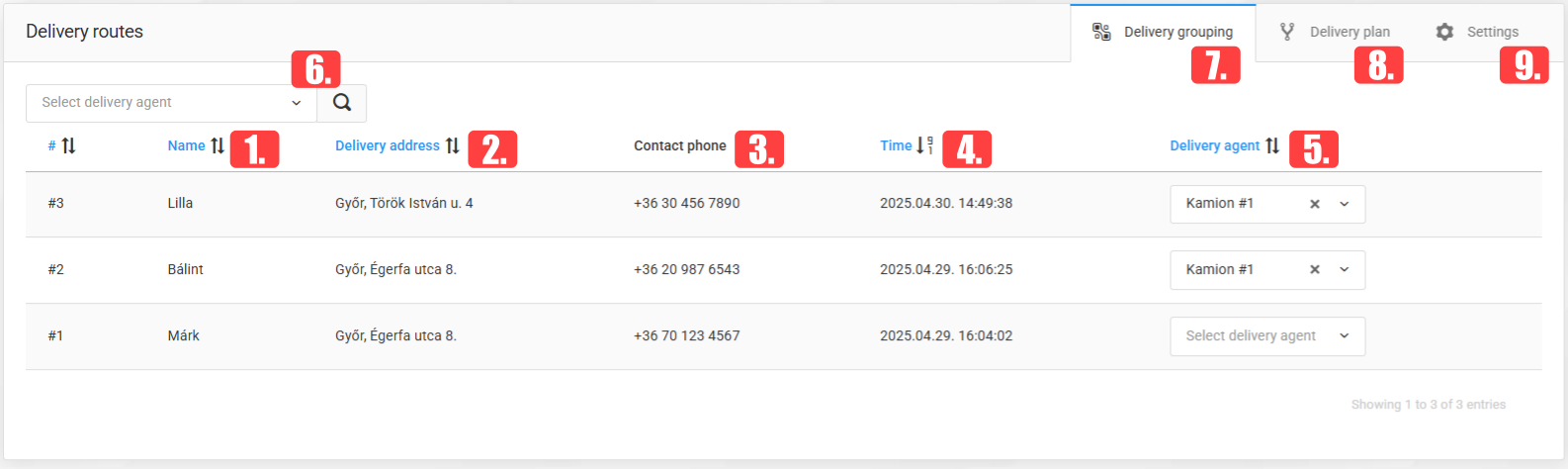
- Delivery Agent – It can be set which pre-arranged delivery vehicles will be assigned to the specific orders.
- Select Delivery Agent – Orders that belong to a specific group or are not assigned to any group can be searched.
- Delivery Grouping – On this page, the delivery groups can be added to the orders.
- Delivery Plan – On this page, the exact delivery route for the different vehicles can be viewed.
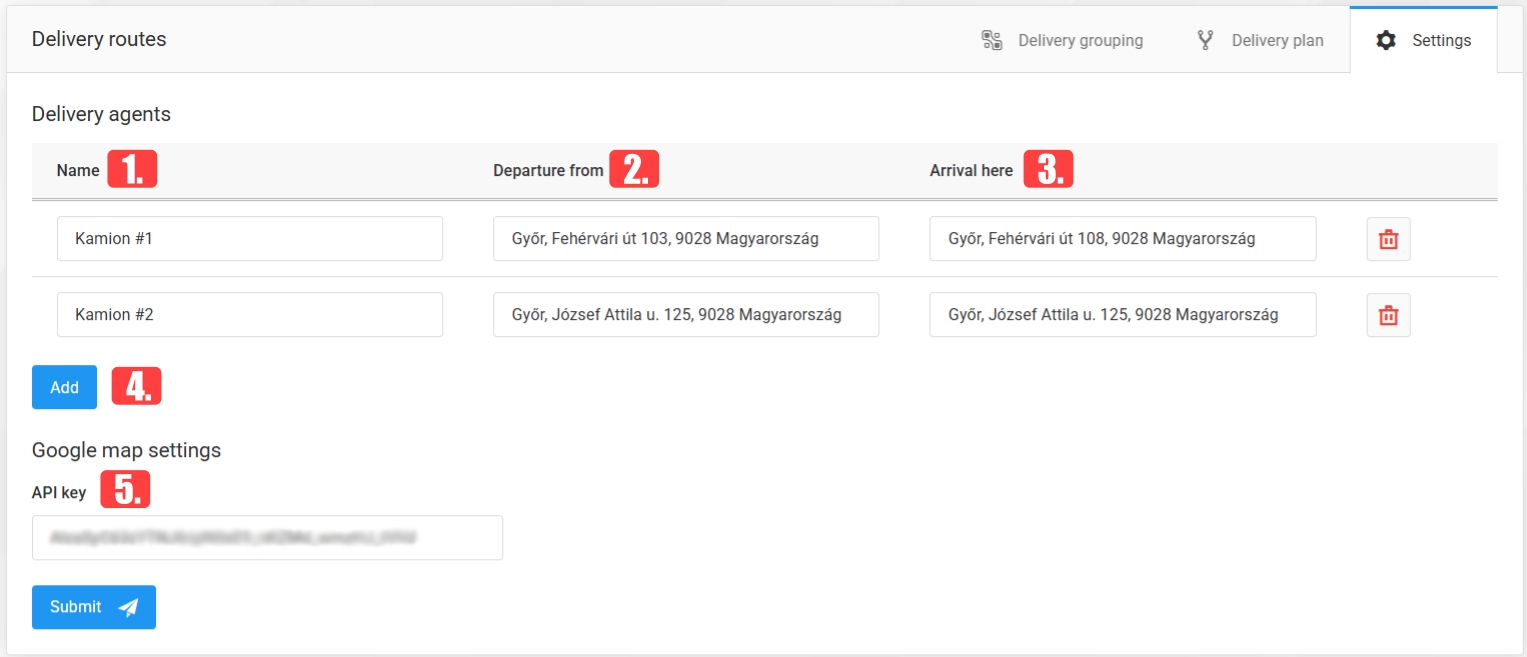
- Settings – On this page, delivery groups can be created and edited, as well as setting the start and end points of the delivery.
- Setting up Delivery Groups
The delivery groups created here can later be configured in the Delivery Routes organization interface.
- Name – The name of the delivery vehicle.
- Departure from – The starting point of the delivery.
- Arrival here – The endpoint of the delivery.
- Add – Create a new delivery group.
- API Key – The API key required to display Google Maps.
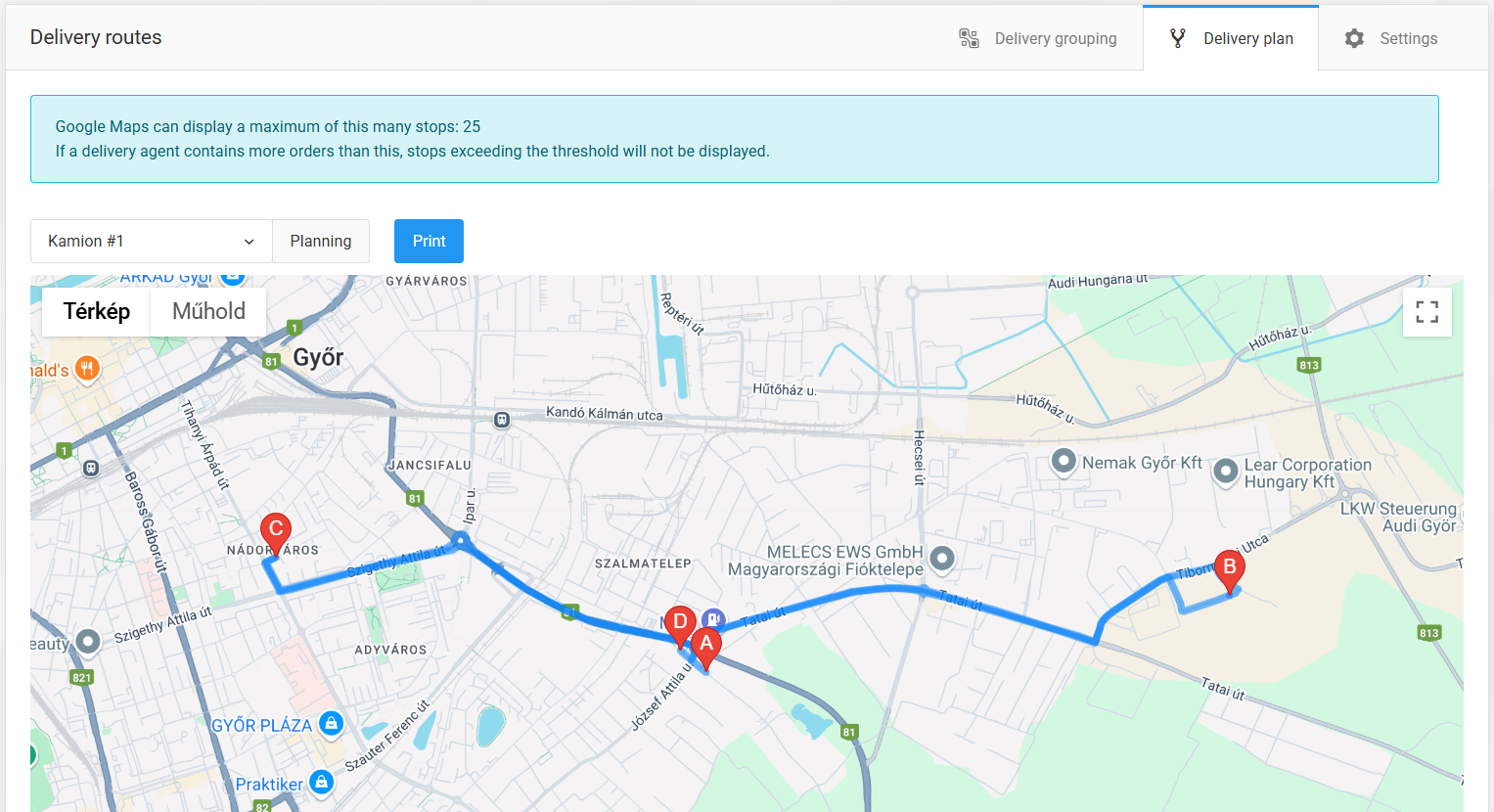
- Delivery Plan
Drawing the delivery routes determines the most optimal path for the deliveries.
Before planning, you need to select the desired delivery vehicle. After clicking the Plan button, the suggested route will be displayed.
NOTE: Google Maps can display a maximum of 25 stops at once.
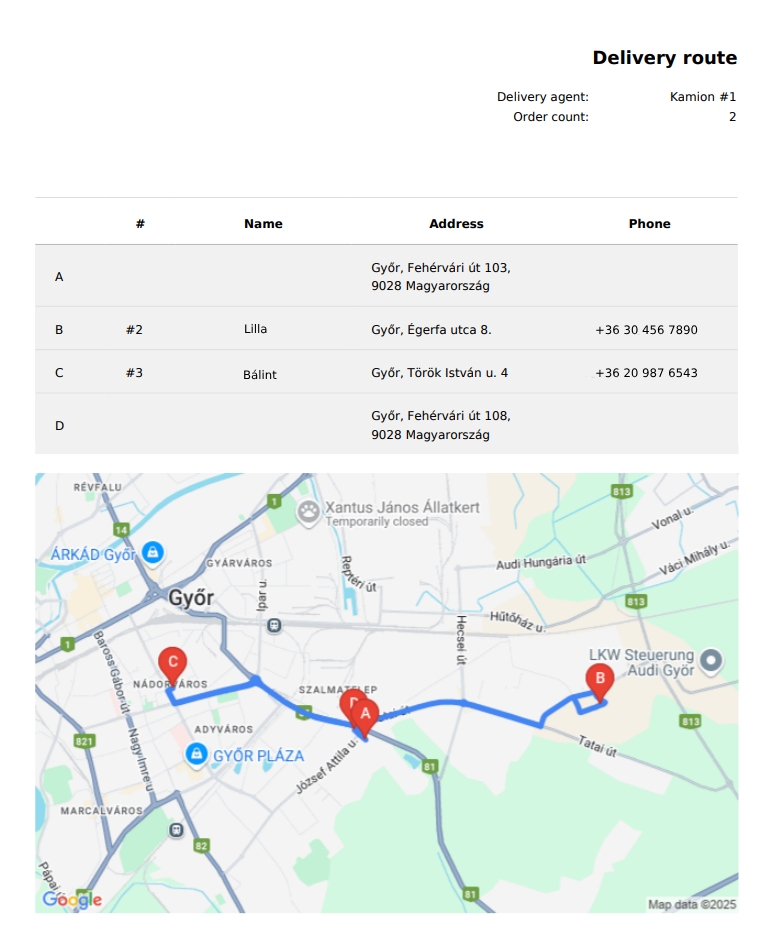
It is also possible to print the route and the associated orders in PDF format.