Sellvio allows store owners to display personalized product inventories on various listing pages, such as Facebook Shop, Olcsobbat.hu, Argep.hu, etc., through API access URLs.
The product API administration screen is available from the admin sidebar under the Webshop → API menu.
For each service listed on the API administration screen, it is required that the store owners have an account with the respective service. Once an account is created with a specific service, the store owner can copy and paste the appropriate API link from Sellvio into their profile page on the service provider's site.
Product listing services require store owners to configure their accounts in a specific way. For more details, please refer to the documentation on the service provider's website to understand how to integrate the API links into their system.
The listed products must also be provided through their specific structure. Sellvio manages the product structure in the background, so store owners do not need to handle this.
General Tab
The settings on the General tab are identical for all services. Therefore, this documentation covers the details for one service, as the configuration process is the same for all services.
- Most product listing services are associated with a specific country. Administrators can filter the list by country using the drop-down menu located at the top of the page.
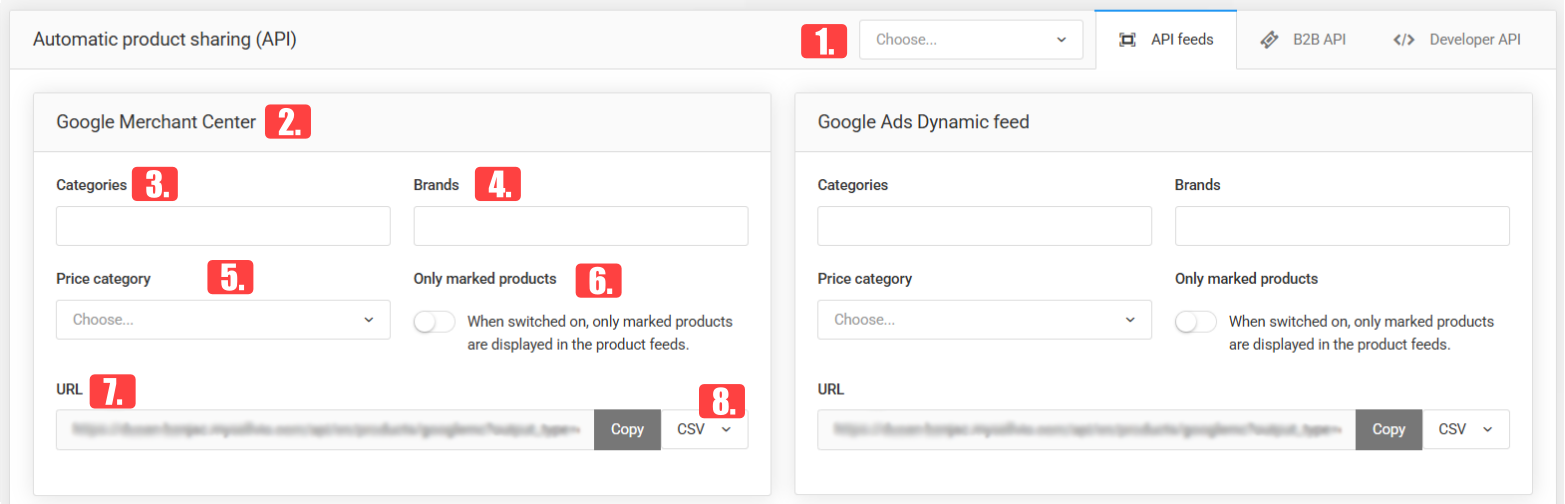
- The name of the product listing service.
- Categories - the category selection field allows store owners to specify which webshop categories they want to include in the product listing service. There is no limit to the number of categories that can be selected.
- Brands - the manufacturer selection field allows store owners to specify which manufacturers' products they want to include in the product listing service. There is no limit to the number of manufacturers that can be selected.
- Price category – select whether retail or wholesale products should be displayed in the product listing service.
- Only marked products – when enabled, only products that have been specifically marked for this purpose in the webshop administration interface will be included in the product feed.
- URL - this field displays the automatically generated URL. Any changes made to the settings above will automatically update the generated URL. The language used in the generated URL (/en, /hu, /sr) is determined by the current language of the administration interface. This also determines the language in which the products will appear on the product listing service. Once all settings have been configured, the API URL can be conveniently copied to the clipboard by clicking the Copy button located at the end of the URL field.
- The Format drop-down menu allows users to select the format in which the products will be served through the URL.
The country where the service is available is displayed in the upper-right corner of the service. If the service is not associated with a specific country, it is available worldwide.
IMPORTANT: Products that are not visible or unavailable will not appear in the product list shared through the API URL.
B2B API Tab
The User API Tokens feature allows the creation of an API endpoint that contains a unique list of products for a specific registered user.
By selecting webshop categories and manufacturers, administrators can narrow down which products from the store should be included in the API endpoint. If no category or manufacturer is selected, the endpoint will include all available products from the webshop. The API endpoint also provides additional product data, such as net price, VAT value, parameters, and declaration information, including net weight, gross weight, and energy class.
The endpoints of the created user API tokens have been enhanced with more detailed product image data. The dataset now includes the product’s main image as well as additional images associated with the product.
Since the endpoint is created for a specific user, the products served via the API URL include system-level user discounts, which can be configured individually for each registered user in the User Management → Users menu, under the Discounts tab. For a quick refresher on user-specific discounts, please refer to this article.
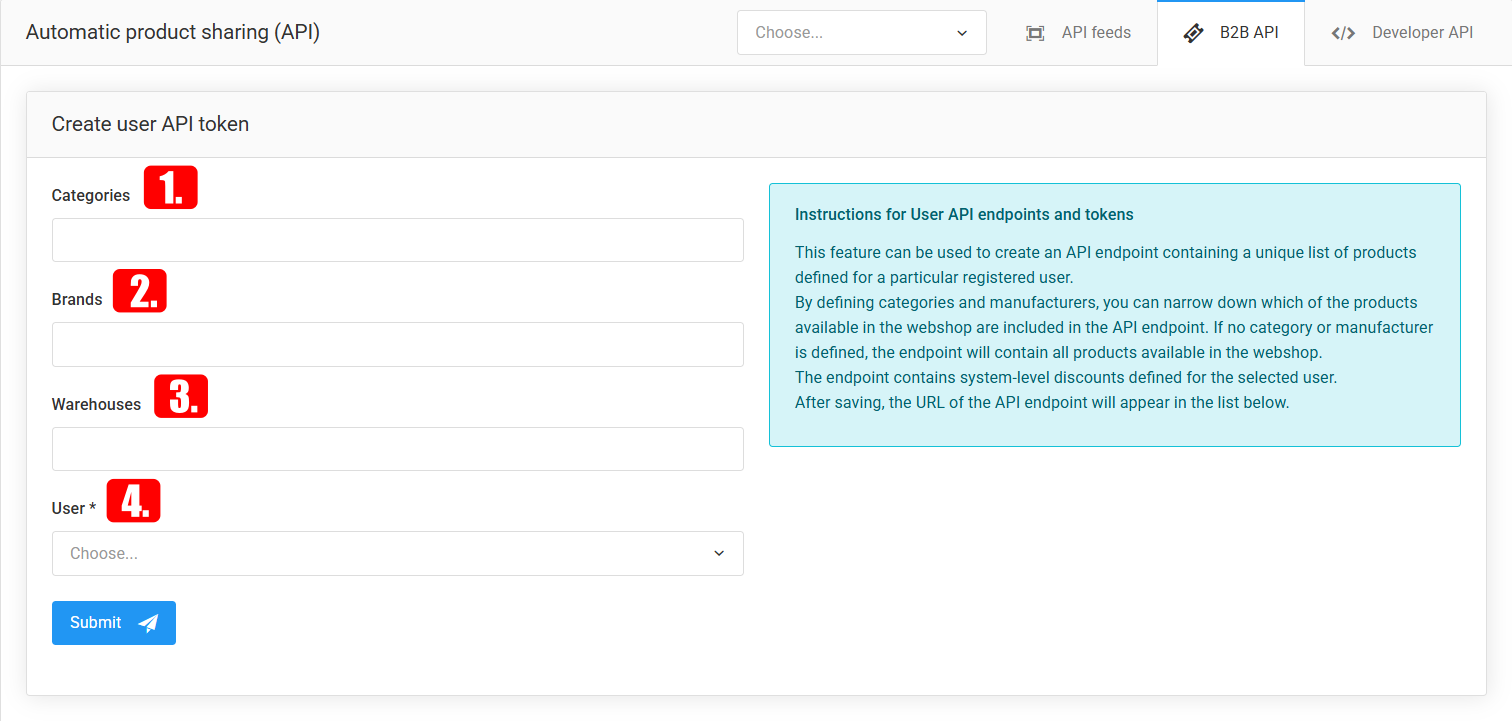
- Categories: The category selection input allows store owners to specify which webshop categories the products should come from. There is no limit on how many categories can be selected.
- Manufacturers: The manufacturer selection input allows store owners to specify which manufacturers’ products should be included. There is no limit on how many manufacturers can be selected.
- Warehouses – by selecting warehouses, you can filter which products from specific stock locations will be available through the API endpoint. If no warehouse is selected, the system does not restrict the product list by warehouse.
- User: The registered user for whom the API endpoint should be created. This field allows searching by user name or email address.
By clicking the Save button, the selected user’s API endpoint will be created with the provided configuration.
All previously created API endpoints are listed on the User API Tokens tab, following the Create User API Token section.
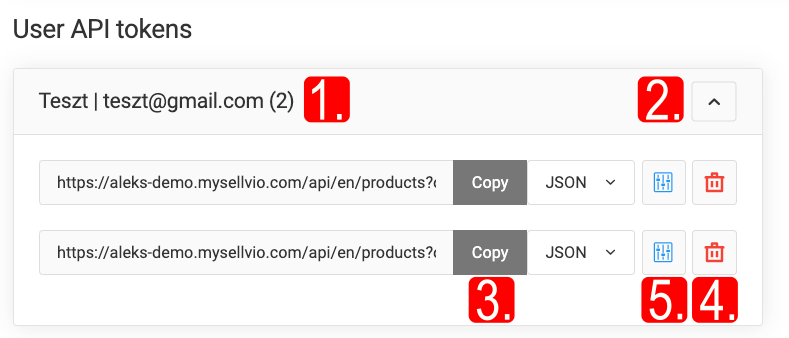
The registered user's name and e-mail address, as well as the number of endpoints used by the client.
User Name and Email: The registered user's name and email address, along with the number of endpoints the client has used.
The section containing the list of endpoints owned by the user can be expanded or collapsed using the arrow button in the top-right corner of the section. Administrators can choose the endpoint format and, using the format dropdown menu, copy the created endpoint to the clipboard by clicking the Copy button.
If an API endpoint is no longer needed, it can be easily deleted by clicking the red trash can icon at the end of the API URL entry.
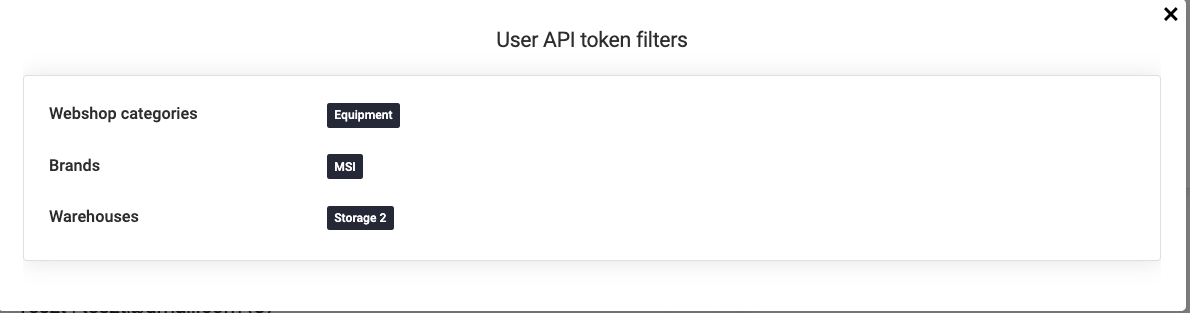
Clicking the blue Settings button at the end of the API URL entry will display the configuration with which the endpoint was created.
IMPORTANT: Existing API URL settings can only be viewed, not edited.