The Translations administration page provides complete control over all static text and strings displayed on both the storefront and the administration interface. It allows for easy customization and management of these elements as needed.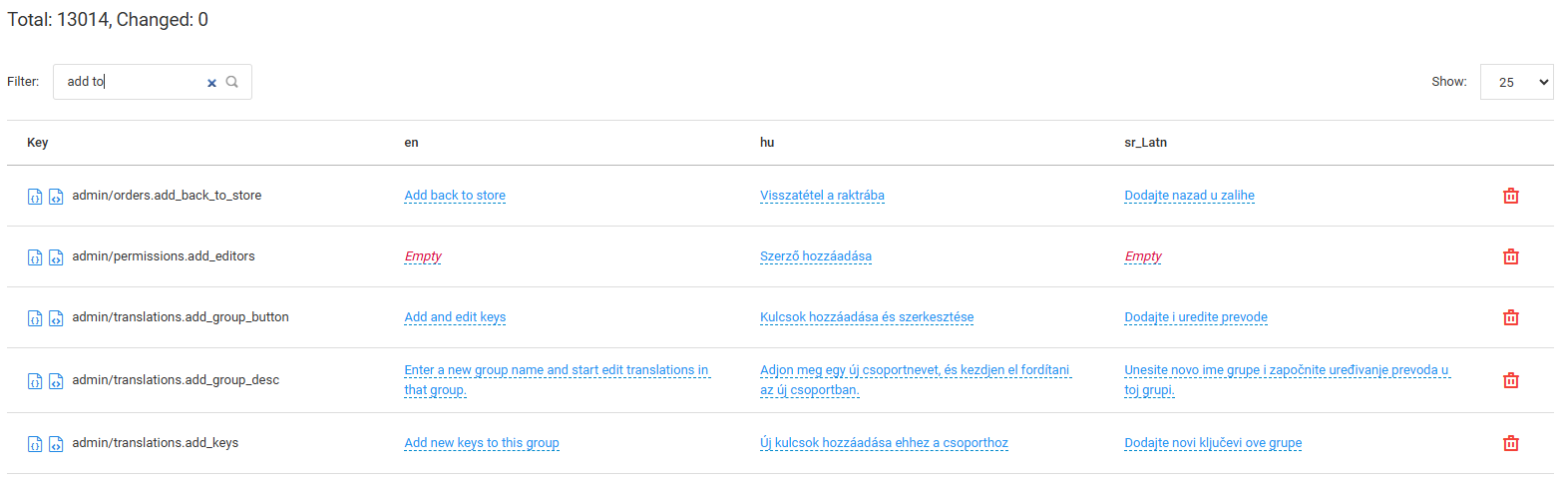
To find a specific string, such as the phrase "Add to", simply enter it into the Filter search box. The system will automatically display a set of results containing all static text that matches the search criteria, as illustrated in the example below.
Empty – indicates that no translation is provided for the given string in the given language.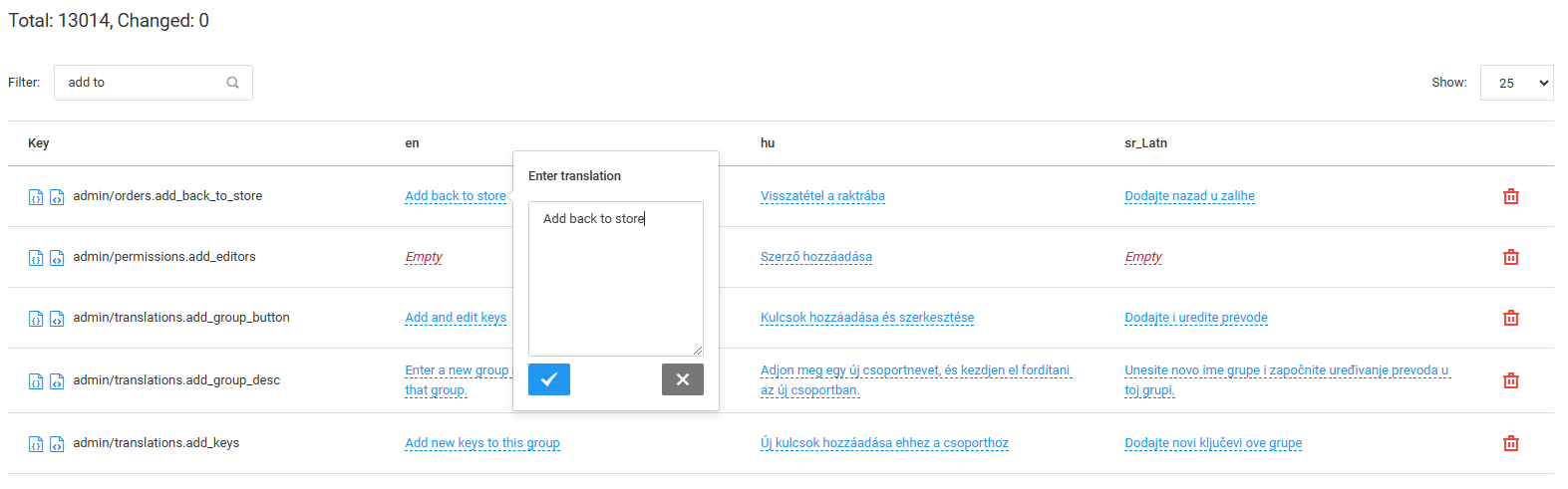
To modify any translation, click on the string. A pop-up window will appear, allowing store owners to edit the text (as shown in the example below).
After editing a translation, simply click the checkmark button to save the changes.
If no changes are needed, the pop-up window can be closed at any time by clicking the "X" button.
To apply the new translations, click the "Publish all translations" button located in the top-right corner of the screen (as shown in the screenshot below).
NOTICE: As shown in the screenshot above, the system notifies administrators if translations have been modified but have not yet been published to the live environment. This ensures that all changes are reviewed and applied intentionally.