In Sellvio, webstore administrators can create information bars to share various types of information with their users.
When adding an information bar, note that only one item can appear in a given position at a time. If multiple items are assigned to the same position, the system will randomly select one to display on the website.
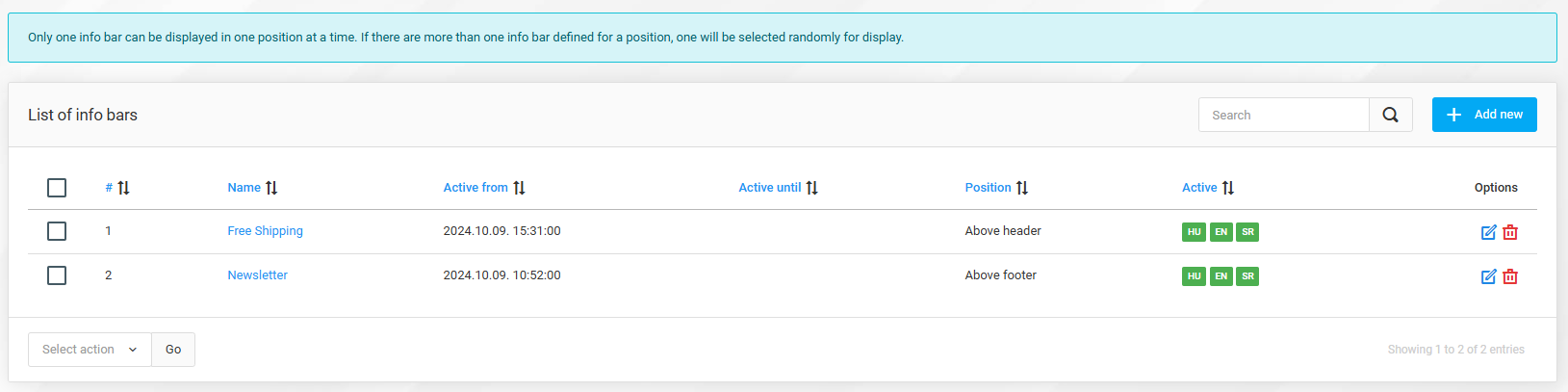
The list displays the title of the information bars, their visibility period, the position name, and the language in which the bar will appear. Additionally, standard Edit and Delete buttons are available in each row for managing information bars.
Adding and editing information bars
- Position – This field specifies the position of the information bar on the website.
- Active (enabled by default) – Determines whether the information bar is enabled or disabled. Disabled bars will not appear on the website.
- Name – The name of the bar, used for identification purposes (not displayed on the website).
- Active from – The date and time when the bar will begin appearing on the website.
- Active until – The date and time until which the bar will remain visible on the website.
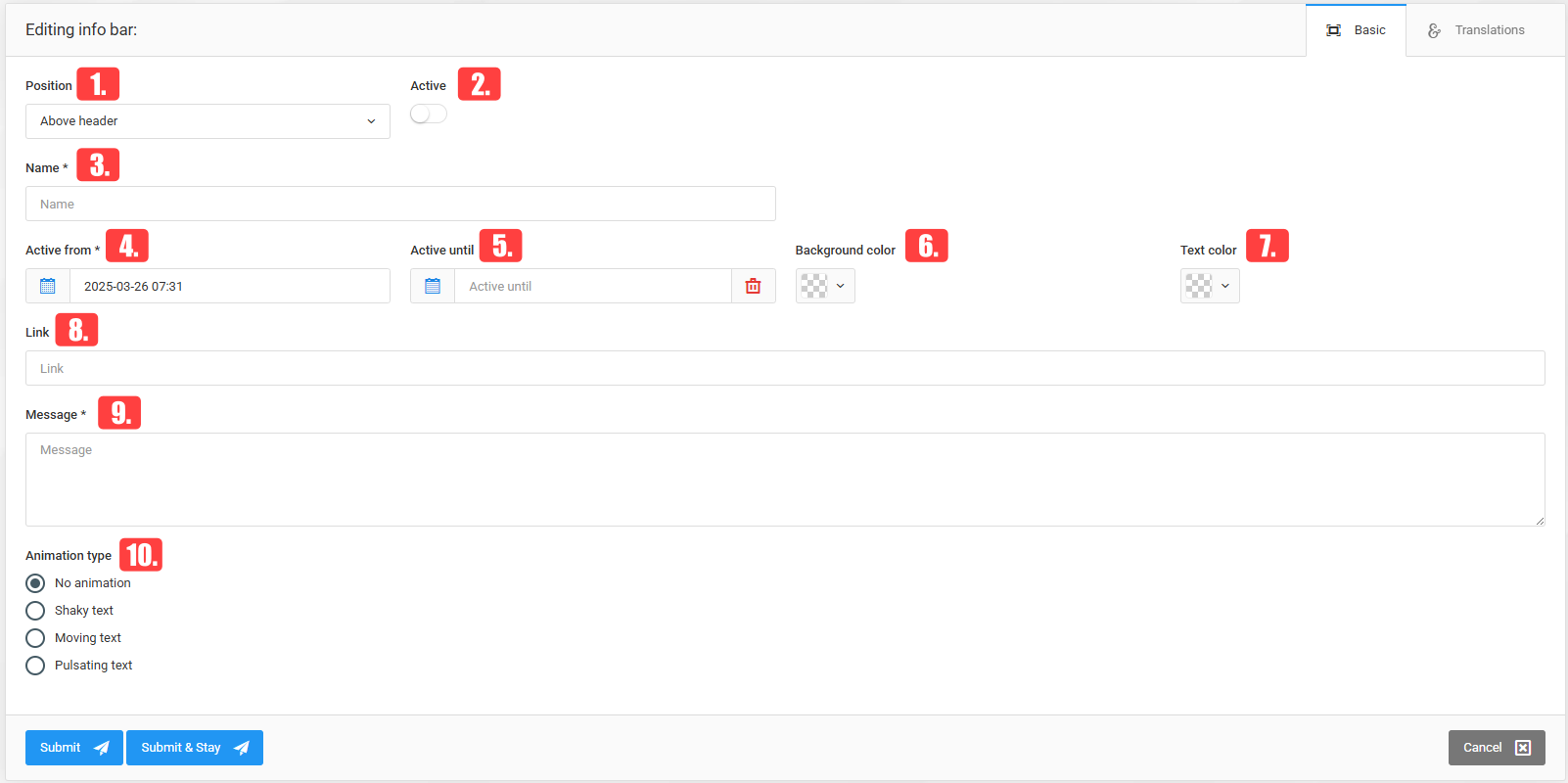
- Background color – If left blank, the background of the information bar will adapt to the theme colors. If a color is selected, it will become the background color of the information bar.
- Text color – If left blank, the text color of the information bar will adapt to the theme colors. If a color is selected, it will be used for the text displayed in the information bar.
- Link — by entering a link the information bar becomes clickable, allowing the user to be redirected to a subpage of our choice or to an external site.
- Message — the text displayed in the information bar.
- Link – Adding a link makes the information bar clickable, redirecting users to a specified subpage or external page.
- Message – The text that will appear within the information bar.
- Vibrating text — the text occasionally moves left and right.
- Moving text — the text moves continuously from right to left.

- Animation type - You can choose to display the text in the bar as static or with various animation effects:
Currently, there are 3 information bar positions:
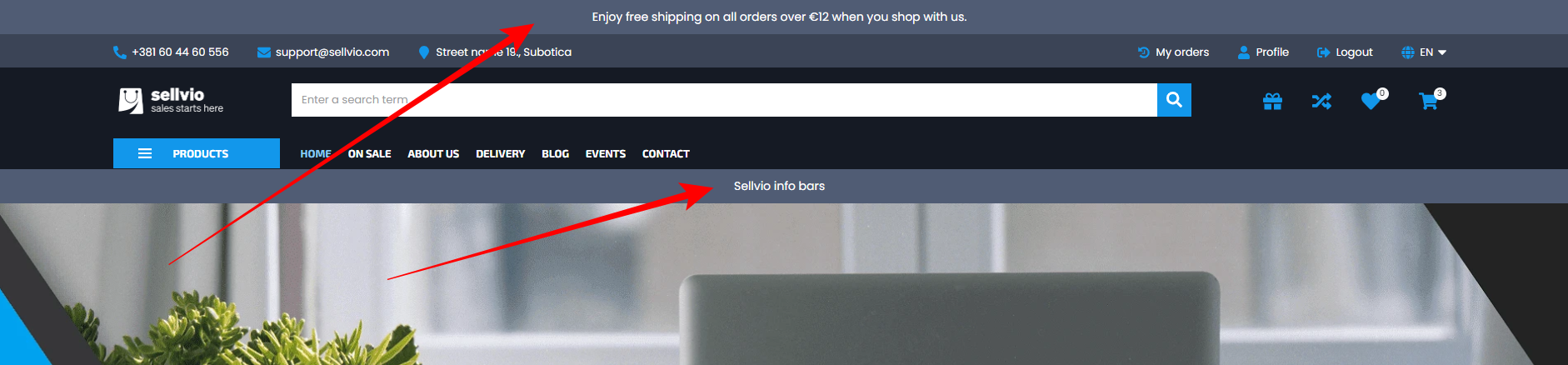
- Above header – This is always visible.
- Below header – This is visible only until the user scrolls down the page.
- Above hooter– This becomes visible when the user scrolls to the footer.
Information bars will, by default, adapt to the theme of the webstore.
Information bars will, by default, adapt to the theme of the webstore.