Accessible from the sidebar under Settings → Fonts.
The Fonts administration page allows webstore administrators to add an unlimited number of Google Fonts to their site, including those not part of the selected theme.
ID – The identifier of the font added to the system.
Name – The name of the font.
To search for a specific font, simply enter its name into the search bar and click the "magnifying glass" icon.
Administrators can modify the settings of an existing font by clicking the "edit" button.
If a font is no longer needed, it can be removed by clicking the "trash" icon.
New fonts can be added at any time by clicking the "Add new" button.
Adding or editing fonts
Adding a new Google Font to the webstore is a simple and straightforward process. The administrator only needs to select a Google Font from the dropdown list and save the changes.
- Font – Using the dropdown input field, the webstore administrator can select a Google Font that has not yet been added to the site.

- Preview – The preview interface provides a visual demonstration of the selected font across various sizes.
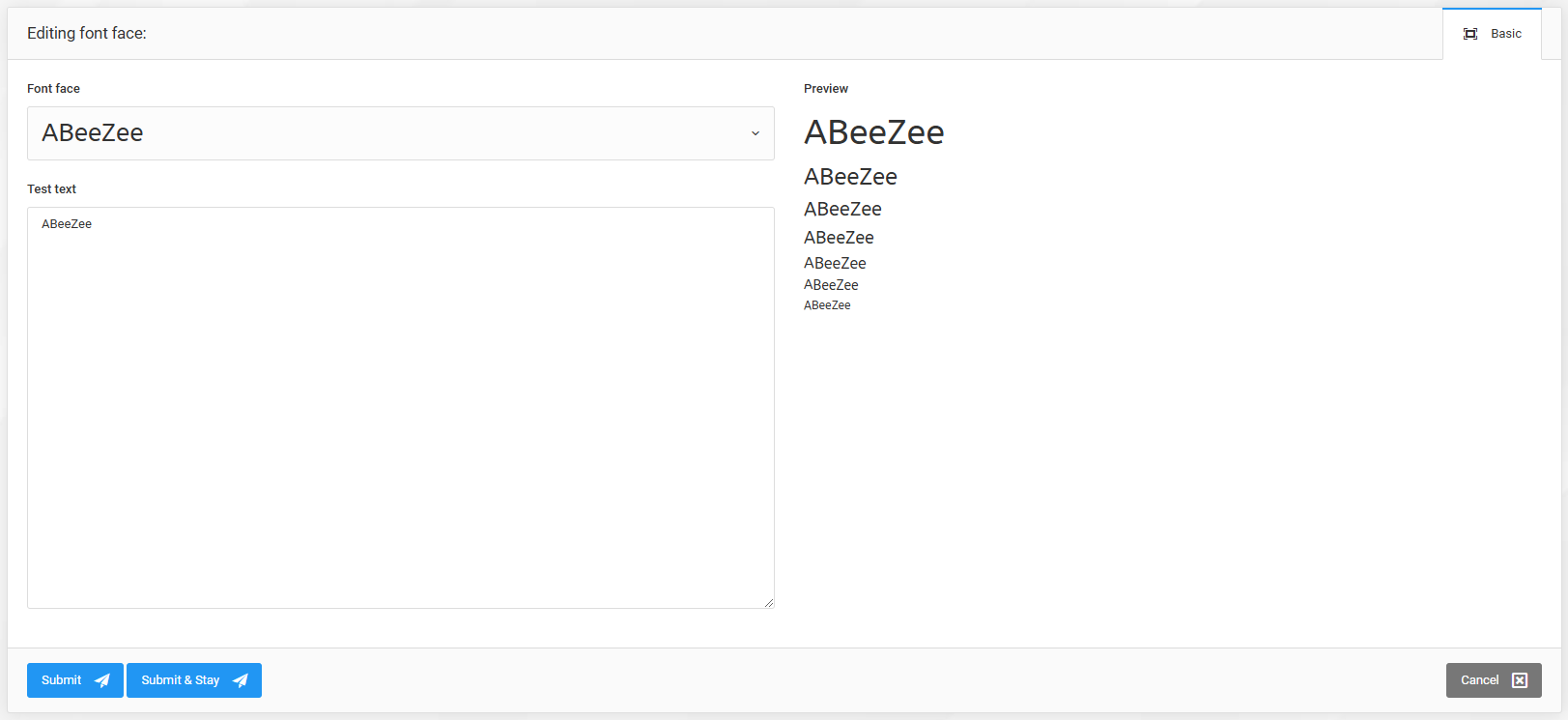
- Test Text – The test text input field allows the administrator to experiment with the selected font.

Clicking the "Submit" or "Submit and stay" button adds or updates the font.
Using fonts in the text editor
All added fonts are automatically made available in the webstore’s text editors.
To use the added fonts:
In the text editor input field, click on the "Font" dropdown menu.
From the displayed list, click to select the desired font.