A unique counter module can be added to the homepage for each theme, allowing important statistical data or results to be highlighted. The module is fully customizable, enabling you to set any background, icons, texts, and numbers as desired.
List of counter blocks
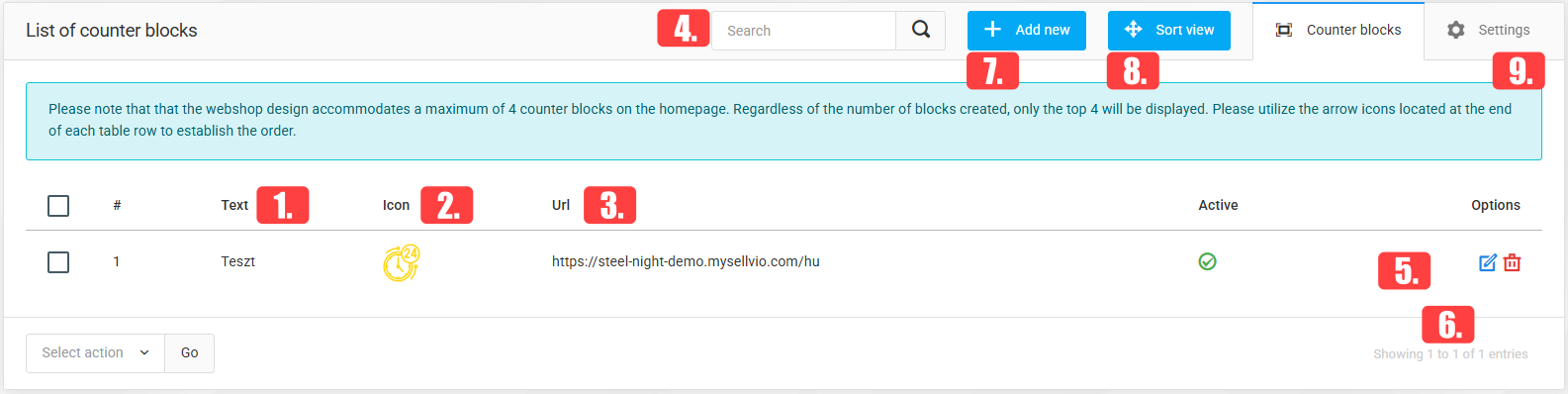
Text – A short description of the icon. This text appears below the counter value.
Icon – The image file to be displayed as the icon.
URL – You can specify a URL that the counter should link to when clicked.
To search for a counter by name, simply enter its name in the search bar and click the magnifying glass icon.
By clicking the "Edit" button, store owners can modify existing counters.
If a counter is no longer needed, store owners can delete it by clicking the "Trash" button.
New counters can be created at any time by clicking the "Add New" button.
You can switch between Sorting View and List View – In Sorting View, you can change the order of the counters to define how they appear on the homepage.
Under the Settings tab, a background image can be set for the counter.
Creating a Counter Block
A block section can be displayed on the homepage, containing up to 4 icons along with their corresponding descriptions.
- Description – A short description of the icon. This text appears below the counter value.

- URL – You can specify a URL that the counter should link to.
- Counter – The maximum value of the counter.
- Display in thousands/millions – This option can be turned on or off, depending on how you want the value to be displayed.
- Active (enabled by default) – Indicates whether the counter is visible to store visitors. Inactive counters are not shown to customers.
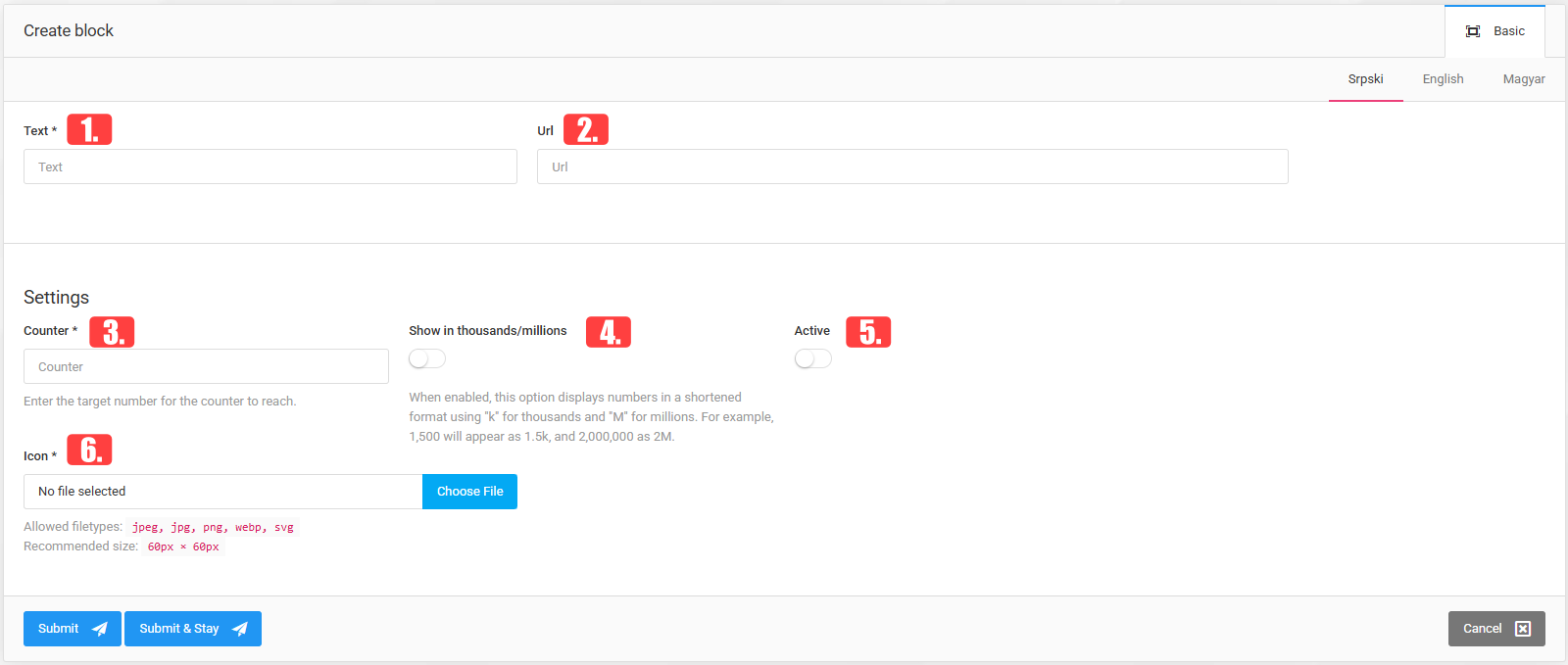
- Icon – The image file to be displayed as the icon.